
Operation Manual





6
STARTING AND CLOSING OF SOFTWARE
STARTING
Windows
Starting from the desktop
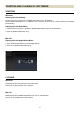
Please click on the shortcut icon of SIGMA Optimization Pro in the desktop.
(When SIGMA Optimization Pro is installed to your computer, the shortcut icon will be created in the desktop
automatically.)
Starting from the Start Menu
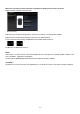
1. Please open All Programs > [SIGMA] > [SIGMA Optimization Pro] from the Start Menu.
2. Click on [SIGMA Optimization Pro].
Mac OS
Starting from the Applications Menu
1. Open [SIGMA Optimization Pro] from [Applications].
2. Click on the [SIGMA Optimization Pro].
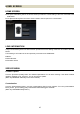
(Startup screen)
CLOSING
Windows
Select [Exit] from the [File] menu in the Menu Bar.
Click on the [Close] button in the Title Bar.
Mac OS
Select [Exit] from [SIGMA Optimization Pro] menu in the Menu Bar.
Click on the [close] button in the Title Bar.