
XG-MB67X Operation-Manual Setup-Guide GB
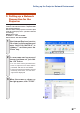
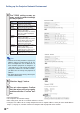
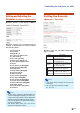
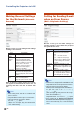
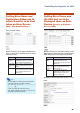


Table Of Contents
- Screen Size and Projection Distance
- Connecting Pin Assignments
- RS-232C Specifications and Commands
- Setting up the Projector Network Environment
- Controlling the Projector via LAN
- Controlling the Projector Using Internet Explorer (Version 5.0 or later)
- Confirming the Projector Status (Status)
- Controlling the Projector (Control)
- Setting and Adjusting the Projector (Settings & Adjustments)
- Setting the Security (Network – Security)
- Making General Settings for the Network (Network – General)
- Setting for Sending E-mail when an Error Occurs (Mail – Originator Settings)
- Setting Error Items and Destination Addresses to which E-mail is to be Sent when an Error Occurs (Mail – Recipient Settings)
- Setting the Projector Using RS-232C or Telnet
- Controlling the Projector Using RS-232C or Telnet
- View Setting Detail List ([V]View All Setting)
- Set Items
- Save Settings and Quit ([S]Save & Quit)
- Quit without Saving Settings ([Q]Quit Unchanged)
- IP Address Setting ([1]IP Address)
- Subnet Mask Setting ([2]Subnet Mask)
- Default Gateway Setting ([3]Default Gateway)
- User Name Setting ([4]User Name)
- Password Setting ([5]Password)
- RS-232C Baud Rate Setting ([6]RS-232C Baud Rate)
- Projector Name Setting ([7]Projector Name)
- Disconnecting All Connections ([D]Disconnect All)
- Entering ADVANCED SETUP MENU ([A]Advanced Setup)
- Setting Auto Logout Time (ADVANCED[1]Auto Logout Time)
- Data Port Setting (ADVANCED[2]Data Port)
- Carrying out Network Ping Test (ADVANCED[5]Network Ping Test)
- Setting of Accept IP Address (ADVANCED[6]Accept IP Addr(1) - [8]Accept IP Addr(3))
- Accepting All IP Addresses (ADVANCED[9]Accept All IP Addr)
- Setting of Search Port (ADVANCED[0]Search Port)
- Return to Default Settings (ADVANCED[!]Restore Default Setting)
- Return to Main Menu (ADVANCED[Q]Return to Main Menu)
- Troubleshooting
- Dimensions

-11
Setting up the Projector Network Environment
3. Setting up a Network
Connection for the
Projector
Settings for such items as the projector’s IP
address and subnet mask are compatible with
the existing network.
Set each item on the projector as follows. (See
page 50 of the projector’s operation manual
for setting.)
DHCP Client : Off
IP Address : 192.168.150.002
Subnet Mask : 255.255.255.000
1 Start Internet Explorer (version
5.0 or later) on the computer, and
enter “http://192.168.150.2/” in
“Address”, and then press the
“Enter” key.
2 If a user name and a password
have not yet been set, just click
the “OK” button.
• If a user name and a password have
been set, input the user name and the
password, and click the “OK” button.
• If the user name or password is entered
incorrectly three times, an error mes-
sage will be displayed.
3 When the screen as shown on
the right appears, click “TCP/IP”.