
Operation Manual


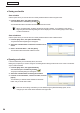


Table Of Contents
- Introduction
- Installing/Launching
- Setting Up a Server
- Launching
- Creating/Editing Programs
- The main Program Editor window
- Creating programs
- ● Valid content files
- ● Positioning content (Layout)
- ● Setting the background/frames 1-4
- ● Setting the scroll message
- ● Setting audio and music
- ● Setting the PIP window
- ● Saving a program
- ● Opening a program
- ● Checking a program
- ● Deleting a program
- ● Displaying program properties
- ● Importing/exporting a program
- Setting Information for logging in to the management PC
- Uploading/Downloading Programs, Content and Scroll Messages
- Deleting Programs, Content and Scroll Messages on the Server
- RSS Editor
- Conditional Content
- Creating/Editing Timetables
- Creating/Editing Schedules
- Logging In
- Panel Management
- Distributing
- Management
- User Management
- Viewer Update
- Schedule Reception/Program Display
- Key/Mouse Monitoring

92
Schedule Editor
Creating a schedule
● Registering a timetable in the schedule
Timetable folder
1. Select the timetable folder containing the timetable.
2. Select a timetable from the “Timetable” list and click
,
or alternatively, double-click the timetable, or from the
[Edit] menu, click [Add Timetable to Schedule].
The[AddTimetabletoSchedule]dialogboxwillappear.
3. Set a “Span”.
This is the length of time that the program will be played for.
If you do not set the “Option” area, the time schedule will be
added to the entire span from “Start” to “End”.
Usethe“Option”settingstoaddtimetablestospecifieddays
or weeks.
• Ifyoucheckthe“Selecttheday(s)oftheweekbelow:”
checkboxandthe“Sunday”to“Saturday”checkboxes,
thetimetablewillonlybeaddedtothespecifieddaysof
the week during the span.
• Ifyoucheckthe“Selecttheweek(s)ofthemonth
below:”checkboxandthe“1stweek”to“6thweek”
checkboxes,thetimetablewillonlybeaddedtothe
specifiedweeksduringthespan.
•
If you specify both “Select the day(s) of the week below:”
and “Select the week(s) of the month below:”, the timetable
will only be added to days that meet both sets of conditions.
Forexample,setting“Selecttheday(s)oftheweekbelow:”to“Wednesday”,and“Selecttheweek(s)of
the month below:” to “2nd week”, would add the timetable to the second Wednesday of every month.
4. Click [OK].
The timetable will be registered in the schedule.
Timetables may also be registered by dragging
them from the “Timetable” list to the “Calendar”.
Registered timetables can be changed in the
calendar.