
Operation Manual


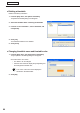


Table Of Contents
- Introduction
- Installing/Launching
- Setting Up a Server
- Launching
- Creating/Editing Programs
- The main Program Editor window
- Creating programs
- ● Valid content files
- ● Positioning content (Layout)
- ● Setting the background/frames 1-4
- ● Setting the scroll message
- ● Setting audio and music
- ● Setting the PIP window
- ● Saving a program
- ● Opening a program
- ● Checking a program
- ● Deleting a program
- ● Displaying program properties
- ● Importing/exporting a program
- Setting Information for logging in to the management PC
- Uploading/Downloading Programs, Content and Scroll Messages
- Deleting Programs, Content and Scroll Messages on the Server
- RSS Editor
- Conditional Content
- Creating/Editing Timetables
- Creating/Editing Schedules
- Logging In
- Panel Management
- Distributing
- Management
- User Management
- Viewer Update
- Schedule Reception/Program Display
- Key/Mouse Monitoring

84
Timetable Editor
Changing the timetable span
1. From the [Option] menu, click [Set Timetable Span].
The[TimetableSpan]dialogboxwillappear.
2. Set the “Start” and “End” times.
Specifytimesbetween00:00and24:00.
3. Click [OK].
Thenewtimeswillbereectedinthetimetable.
Adjusting the scale
Selectintervalsof5,10,15,30or60minutesfromthe“Scale”
list.
● Saving a timetable
Save timetable
Usethisoptionwhenyouwanttosavethecurrentlyeditedtimetableunderitsoriginalname.
1. From the [File] menu, click [Save Timetable].
You can also save a timetable by clicking
.
Thetimetablefilewillbeoverwrittenandsavedwiththesamename.
When“TimetableEditor”isstarted,thetitlebarwillread“Untitled”.Ifyouattempttosaveatthis
stagethe[SaveTimetable]dialogboxwillbedisplayed.Fortheremainingsteps,refertostep2of
“Save timetable as”.