
Operation Manual


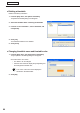


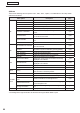
Table Of Contents
- Introduction
- Installing/Launching
- Setting Up a Server
- Launching
- Creating/Editing Programs
- The main Program Editor window
- Creating programs
- ● Valid content files
- ● Positioning content (Layout)
- ● Setting the background/frames 1-4
- ● Setting the scroll message
- ● Setting audio and music
- ● Setting the PIP window
- ● Saving a program
- ● Opening a program
- ● Checking a program
- ● Deleting a program
- ● Displaying program properties
- ● Importing/exporting a program
- Setting Information for logging in to the management PC
- Uploading/Downloading Programs, Content and Scroll Messages
- Deleting Programs, Content and Scroll Messages on the Server
- RSS Editor
- Conditional Content
- Creating/Editing Timetables
- Creating/Editing Schedules
- Logging In
- Panel Management
- Distributing
- Management
- User Management
- Viewer Update
- Schedule Reception/Program Display
- Key/Mouse Monitoring

82
Timetable Editor
● Registering panel control in a timetable
1. Click the [Panel Control] tab.
A list of panel control commands will be displayed.
There are two categories: “Command Name” and “Input Source”. Commands are as follows:
Command Description
Turn On Display Turns the panel (monitor) power ON.
Turn Off Display Puts the panel (monitor) into standby mode.
Switch Input Source
(Input “No.”)
Switches the panel (monitor) input source.
TV *
1
Switch the input source of the panel (monitor) to “TV input”. The channel at the
timeofswitchingtotheTVcannotbespecified.Thechannelthatwasselectedby
the TV immediately before switching is displayed.
*1 It cannot be used with the SHARP LCD monitor (PN series).
•Thecommandssupportedbythepanel(monitor)
can be checked with “Table of supporting panel
controls.”
•Todisplay“Tableofsupportingpanelcontrols,”
click the button (
) “About Panel Support” at the
lower left of the panel control command list. Or, click
[About Panel Support] from [Help] menu.
The contents of “Table of supporting panel controls” are as follows:
Menu option Description
RC-232C
Indicates the cable to be used for the connection (straight cable or cross cable).
Indicates transmission speeds supported.
LAN Indicates whether LAN connection is supported.
Turn On
Indicates whether the “Turn On Display” panel control command is supported.
Turn Off
Indicates whether the “Turn Off Display” panel control command is supported.
Get Status Indicates whether Get Status is supported.
Detect H/W Error Indicates whether hardware error detection is supported.
TimeSynchronization
IndicateswhetherTimeSynchronization(
F
p.108)issupported.
Input “No.” Indicates which input of the panel (monitor) is supported.
TV Indicates whether TV input is supported.
2. Select the panel control command you want to use from
the “Command Name” and click
.
The[AddPanelControlCommandtoTimetable]dialogbox
will appear.