
Operation Manual



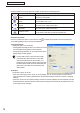

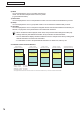


Table Of Contents
- Introduction
- Installing/Launching
- Setting Up a Server
- Launching
- Creating/Editing Programs
- The main Program Editor window
- Creating programs
- ● Valid content files
- ● Positioning content (Layout)
- ● Setting the background/frames 1-4
- ● Setting the scroll message
- ● Setting audio and music
- ● Setting the PIP window
- ● Saving a program
- ● Opening a program
- ● Checking a program
- ● Deleting a program
- ● Displaying program properties
- ● Importing/exporting a program
- Setting Information for logging in to the management PC
- Uploading/Downloading Programs, Content and Scroll Messages
- Deleting Programs, Content and Scroll Messages on the Server
- RSS Editor
- Conditional Content
- Creating/Editing Timetables
- Creating/Editing Schedules
- Logging In
- Panel Management
- Distributing
- Management
- User Management
- Viewer Update
- Schedule Reception/Program Display
- Key/Mouse Monitoring

75
Conditional Content Editor
3. Click the icon.
Contentfilesareaddedtotheendoftheconditionlist.
Formoredetailsabouthowtosetplayconditionsfor
conditionlists,refertop.77.
•InStep3,youcanregistercontentfilesbydouble-clickingthemorbydraggingthemfromthe“Content
File”listtothe[ConditionList].
•Youcanhidecontentbyclickingthe
icon on the bottom left of the screen.
•Youcanturnthesoundoffbyclickingthe icon on the bottom left of the screen.
•Youcanskipconditionalcontentandplaythenextplaylistbyclickingthe on the bottom left of the
screen.
•Bysettingtheplaybackconditions,theselectedplaybackconditionswillappearintheframebelowthe
conditions list.
•Thecontentfilesfromtheconditionslistcanbecopiedbydroppinganddraggingthemwhileholdingthe
[Ctrl] key.
•Clickingthebuttonsatthebottomofthe“ContentFile”list(
) or ( ) allows you to create a new or
editanexistingRSSconfigurationfile.(
F
p.66)
Preview Content
Youcanpreviewcontentfilesinthe[ShowContentPreview
Window] window.
Click [Show Content Preview Window] from the [View] menu
topreviewthefiles.
Previewsfromthefollowingtypesoffileswillnotbedisplayed
immediately.Topreviewthesefiles,clicktherelevanticon
displayed in the [Show Content Preview Window] window.
(Clickthetextstringifpreviewingascrollmessage.)
•Fileswithasizeof2MBorhigher
•Videofiles
•PowerPointfiles(Previewdisplayedinfullscreenmode)
•
Scrollmessagefiles(Previewdisplayedinfullscreenmode)
Conditional Content
Contentconditionsarecheckedandonlythefirstcontent
that matches those conditions is displayed. The list plays in
order starting from the top, and contents that do not match
conditions are skipped.
The duration is the amount of time it takes to play content.
ContentfilesontheconditionlistwiththelongestdurationsaredisplayedontheMaximumDurationList.