
Operation Manual
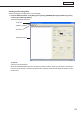


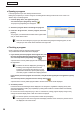


Table Of Contents
- Introduction
- Installing/Launching
- Setting Up a Server
- Launching
- Creating/Editing Programs
- The main Program Editor window
- Creating programs
- ● Valid content files
- ● Positioning content (Layout)
- ● Setting the background/frames 1-4
- ● Setting the scroll message
- ● Setting audio and music
- ● Setting the PIP window
- ● Saving a program
- ● Opening a program
- ● Checking a program
- ● Deleting a program
- ● Displaying program properties
- ● Importing/exporting a program
- Setting Information for logging in to the management PC
- Uploading/Downloading Programs, Content and Scroll Messages
- Deleting Programs, Content and Scroll Messages on the Server
- RSS Editor
- Conditional Content
- Creating/Editing Timetables
- Creating/Editing Schedules
- Logging In
- Panel Management
- Distributing
- Management
- User Management
- Viewer Update
- Schedule Reception/Program Display
- Key/Mouse Monitoring

59
Program Editor
Preview Program Display Settings
Ifyoucheck“SetConfigurationbeforePreviewProgram”on
the [View] menu, the “Preview program setting” screen will
be displayed during the program preview. You can set the
conditions, and if you click the “Preview” button, the preview will
occur under the conditions you have set.
•Previewsometimelaterprogram:
Displaystheprogrampreviewafteraspecifiedamountoftime
has passed. The time at which the program switches to the
following content may differ from situations where programs are
playedfromthebeginningsincethefirstcontentdisplayedmust
be played from the beginning when previewing programs with
this function.
•Previewprogramwithplayconditions:
Click “Play Condition Setting” to set conditions
During conditional content playback, content matching the conditions set in [Play Condition Setting] is
displayed.
•“PlayDate” :
Sets the date on which the program will be played.
•“PlayTime” :
Sets the time at which the program will be played.
•“Panelname” :
Sets the panel on which the program will be played.
•“Group” :
Sets the group with which the program will be played.
•“Comment” :
Sets comments on the panel on which the program will be played.
•Previewprogramwithbezelpositionformultimonitor:
Displays the program preview over the edges between panels when using multiple monitors
* Think of the edges as rough estimates.
•“Modelname” :
Select the monitor model name.
•“Composition” :
Select the multi-monitor setup.
● Deleting a program
Delete unnecessary programs.
1. Click [Delete Program] from the [File] menu.
The[DeleteProgram]dialogboxwillappear.
2. Select the program folder containing the program.
3. Select a program from the “Program List” and click
[Delete].
4. Click [Yes].
The selected program has now been deleted.
5. Click [Close].
Click “Monitor setting” to set conditions