
Operation Manual
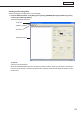


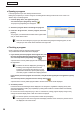


Table Of Contents
- Introduction
- Installing/Launching
- Setting Up a Server
- Launching
- Creating/Editing Programs
- The main Program Editor window
- Creating programs
- ● Valid content files
- ● Positioning content (Layout)
- ● Setting the background/frames 1-4
- ● Setting the scroll message
- ● Setting audio and music
- ● Setting the PIP window
- ● Saving a program
- ● Opening a program
- ● Checking a program
- ● Deleting a program
- ● Displaying program properties
- ● Importing/exporting a program
- Setting Information for logging in to the management PC
- Uploading/Downloading Programs, Content and Scroll Messages
- Deleting Programs, Content and Scroll Messages on the Server
- RSS Editor
- Conditional Content
- Creating/Editing Timetables
- Creating/Editing Schedules
- Logging In
- Panel Management
- Distributing
- Management
- User Management
- Viewer Update
- Schedule Reception/Program Display
- Key/Mouse Monitoring

58
Program Editor
● Opening a program
Load a program that you have already saved and use it.
Editingonlytheplacesyouwanttochangeinanexistingfileandsavingthefileunderanewnameisan
effective way to create programs.
1. From the [File] menu, click [Open Program].
You can also open a program by clicking
.
The[OpenProgram]dialogboxwillappear.
2. Select the program folder containing the program.
3. From the “Program List”, select a program, and click
[Open].
The program you selected will be loaded into Program Editor
and you will be able to edit it.
Take care when saving the program you have edited using the [Save Program] option, as the
changesyouhavemadewillbereectedintheoriginalfile.
● Checking a program
Check a program using the program preview function.
Two previews with the same data will be displayed.
1. If you want to preview a program at its original size, click
[Preview Program [Original size]] from the [View] menu.
You can also preview a program by clicking
.
A preview of the currently edited program will be displayed at
itsoriginalsize.
•Previewscanalsobedisplayedbypressing[F5].
•Enabling“SetConfigurationbeforePreview
Program” on the [View] menu allows you to set
specificdatesandtimes,specificpaneldisplays
and other program conditions and display previews.
If you want to preview a program at screen size, click [Preview Program [Fit screen]] from the [View]
menu.
You can also preview a program at screen size by clicking
.
Apreviewofthecurrentlyeditedprogramfittedtothesizeofthescreenwillbedisplayed.
2. Check the preview.
PowerPoint and scroll messages will be displayed in the foreground, regardless of display priority order.
Set PowerPoint data so that it plays repetitively by setting slide transition to advance slides automatically
(automatic slideshow).
Do not use the mouse or keyboard (e.g. to click on a window etc.) during program display. Doing so may
change the window display order or alter the content to be played.
•Toclosethepreview,clickthepreviewwindowandpress[Esc].
•Iftheprogramscreensizeislargerthanthedisplayresolutionofthemonitor,thepreviewcannot
be displayed in full screen mode.