
Operation Manual
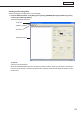


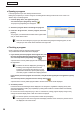


Table Of Contents
- Introduction
- Installing/Launching
- Setting Up a Server
- Launching
- Creating/Editing Programs
- The main Program Editor window
- Creating programs
- ● Valid content files
- ● Positioning content (Layout)
- ● Setting the background/frames 1-4
- ● Setting the scroll message
- ● Setting audio and music
- ● Setting the PIP window
- ● Saving a program
- ● Opening a program
- ● Checking a program
- ● Deleting a program
- ● Displaying program properties
- ● Importing/exporting a program
- Setting Information for logging in to the management PC
- Uploading/Downloading Programs, Content and Scroll Messages
- Deleting Programs, Content and Scroll Messages on the Server
- RSS Editor
- Conditional Content
- Creating/Editing Timetables
- Creating/Editing Schedules
- Logging In
- Panel Management
- Distributing
- Management
- User Management
- Viewer Update
- Schedule Reception/Program Display
- Key/Mouse Monitoring

56
Program Editor
● Setting the PIP window
Settheframesize,aspectratio,inputsource,andaudiosourceforthePIPframe.Thisfunctioncanbeused
only with the SHARP LCD monitor (PN series).
1. Click the [PinP] tab.
2. Select the “Monitor Model Name”.
3. Set values for each item.
A list will appear when you click on a cell in the “Value”
column.
* Items displayed vary according to the “Monitor Model
Name”.
* The video signal may cause misalignment with PIP
locationandsize.
1) Select“Size”.
Monitorsizesvaryaccordingtoaspectratio.
2) Select “Aspect Ratio”.
* Select this according to the video or images that you
want to display.
3) Select“InputSource”.
4) Select “Sound Source”.
5) Select “Direction”.
* The settings for the SHARP LCD monitor cannot be changed. Select values in accordance with the
display settings.
● Saving a program
Save program
Usethisoptionwhenyouwanttosavethecurrentlyeditedprogramunderitsoriginalname.
1. From the [File] menu, click [Save Program].
You can also save by clicking
.
Aconfirmationmessageforcreatingathumbnailwillappear.
When“ProgramEditor”isstarted,thetitlebarwillread“Untitled”.Ifyouattempttosaveatthis
stagethe[SaveProgram]dialogboxwillbedisplayed.Fortheremainingsteps,pleasereferto
step 2 of “Save program as”.
2. When you want to create a thumbnail, click [Yes]. When you do not
want to create a thumbnail, click [No].
When you click [Yes], a small program preview for creating a thumbnail
will appear. Do not perform any operation before this preview screen
disappears.
Formoredetailsabouttheprogramthumbnail,refertop.57.
If you have already created a thumbnail, the program thumbnail is not deleted even if you click
[No]. The previous thumbnail is displayed.