
Operation Manual
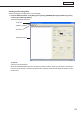


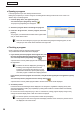


Table Of Contents
- Introduction
- Installing/Launching
- Setting Up a Server
- Launching
- Creating/Editing Programs
- The main Program Editor window
- Creating programs
- ● Valid content files
- ● Positioning content (Layout)
- ● Setting the background/frames 1-4
- ● Setting the scroll message
- ● Setting audio and music
- ● Setting the PIP window
- ● Saving a program
- ● Opening a program
- ● Checking a program
- ● Deleting a program
- ● Displaying program properties
- ● Importing/exporting a program
- Setting Information for logging in to the management PC
- Uploading/Downloading Programs, Content and Scroll Messages
- Deleting Programs, Content and Scroll Messages on the Server
- RSS Editor
- Conditional Content
- Creating/Editing Timetables
- Creating/Editing Schedules
- Logging In
- Panel Management
- Distributing
- Management
- User Management
- Viewer Update
- Schedule Reception/Program Display
- Key/Mouse Monitoring

53
Program Editor
Checkingthe[UseHTMLtag]checkboxallowsyoutouse
thefollowingHTMLtagsinthe“Scrollmessageeditbox”to
definethefontcolor,sizeandotherstyles.
Tag Explanation
<FONT>
Definesthetext.TakestheCOLOR,SIZEandFACEattributeswhichrespectivelydefinethe
textcolor,textsizeandtypeface.
<B> Definesboldtext.
<I> Definesitalictext.
<U> Definesunderlinedtext.
<S> Definesstrikethroughtext.
<BIG> Definesbiggertext.
<SMALL> Definessmallertext.
3. Set the “Message Format”.
Setthedisplaydirectionoftext,fontandtextcolor.
1) Nextto“Orientation”,selectthedisplaydirectionoftext.
2) Tochangethefont,click[SelectFont]andchooseafont
fromthe[Font]dialogbox.
•YoumusthavethesamefontinstalledontheviewerPC.
•Dependingonthetypeoffontused,textsizemaynotbeacquiredcorrectlyresultinginscrolling
being interrupted.
3) Setthe“TextColor.”
Inthe[Color]dialogboxthatappearswhenclickingtherectangleinwhichacolorisdisplayed,thecolor
can be changed.
4) Select “Decoration” from the “None,” “Bordering,” or “Shadowing” option button.
If“Bordering”or“Shadowing”isselected,thetextcolorcanbechangedinthe[Color]dialogboxthat
appears when clicking the rectangle of “Decoration Color”.
4. Set “Background.”
Set the background of scroll messages.
1) Set “Background Color.”
Thecolorcanbechangedinthe[Color]dialogboxthat
appears when clicking the rectangle in which a color is
displayed.
2) Checkingthe“UseTransparent”checkboxallowsyoutomakethebackgroundcolortransparent.
Dragthe“Rate”slidertotheleftorrighttosetthetransparency(10stepsavailable).