
Operation Manual


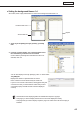


Table Of Contents
- Introduction
- Installing/Launching
- Setting Up a Server
- Launching
- Creating/Editing Programs
- The main Program Editor window
- Creating programs
- ● Valid content files
- ● Positioning content (Layout)
- ● Setting the background/frames 1-4
- ● Setting the scroll message
- ● Setting audio and music
- ● Setting the PIP window
- ● Saving a program
- ● Opening a program
- ● Checking a program
- ● Deleting a program
- ● Displaying program properties
- ● Importing/exporting a program
- Setting Information for logging in to the management PC
- Uploading/Downloading Programs, Content and Scroll Messages
- Deleting Programs, Content and Scroll Messages on the Server
- RSS Editor
- Conditional Content
- Creating/Editing Timetables
- Creating/Editing Schedules
- Logging In
- Panel Management
- Distributing
- Management
- User Management
- Viewer Update
- Schedule Reception/Program Display
- Key/Mouse Monitoring

49
Program Editor
5) Layout
•“Keepingaspectratio”,“Notkeepingaspectratio”,and“Inoriginalsize”optionbuttons
Youcanselect“Notkeepingaspectratio”whenthecontenttypeisastillimageorFlash.
Youcanselect“Inoriginalsize”whenthecontenttypeisastillimage.
•“Temporarily,moveframe”checkbox
Tochangethescreenpositionofthecontenttemporarily,checkthischeckboxandclick[PositionSetting].
Thepositionandsizeoftheframecanbespecifiedforeachcontent.Thescreenpositionmustbesetwithin
the background frame.
6) Picture Transition
When the content type is still image, the effect at screen switching can be set.
Select the effect from each pull-down menu.
Ifyoucheckthe“Viabackground”checkbox,theeffectofdisplayingthebackgroundcoloratthetimeof
screen switching is added.
7) Parameters (for EXE le)
DisplaysparametersforEXEfiles.
● Setting the scroll message
Set scroll message content, order of play and duration of play.
Ascrollmessagefilecontainingtexttobedisplayedinthescrollmessagemustbepreparedinadvance.For
detailsabouthowtocreateascrollmessagefile,refertop.51.
1. Click the [Message1] or [Message2] tab.
2. From the “Content Folder” tree, select the folder where
the scroll message le you want to use is located.
Confirmthatthe[Message]tabisselected.Ifthetabisnot
selected, click on it.
Youcanalsodisplaythecontentfilespecifiedwith
“FilePathOnViewerPC”onthe[ViewerPath]tab.
Specify the absolute path of the viewer PC or the
relative path of the My Contents folder (
F
p.152).
3. Select the scroll message le you want to use from the
“Content File” list.
Onlyscrollmessagefiles(.tlp)andconditionalcontentfor
scrollmessagefiles(.dct)canbeusedwithMessage1and
Message2.
•Clickwhileholdingdown[Ctrl]or[Shift]toselect
multiplescrollmessagefilesatthesametime.
•Youcanpreviewscrollmessagefiles.Scroll
messagefilepreviewsareavailableinfullscreen
mode only. (
F
p.47)