
Operation Manual


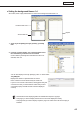


Table Of Contents
- Introduction
- Installing/Launching
- Setting Up a Server
- Launching
- Creating/Editing Programs
- The main Program Editor window
- Creating programs
- ● Valid content files
- ● Positioning content (Layout)
- ● Setting the background/frames 1-4
- ● Setting the scroll message
- ● Setting audio and music
- ● Setting the PIP window
- ● Saving a program
- ● Opening a program
- ● Checking a program
- ● Deleting a program
- ● Displaying program properties
- ● Importing/exporting a program
- Setting Information for logging in to the management PC
- Uploading/Downloading Programs, Content and Scroll Messages
- Deleting Programs, Content and Scroll Messages on the Server
- RSS Editor
- Conditional Content
- Creating/Editing Timetables
- Creating/Editing Schedules
- Logging In
- Panel Management
- Distributing
- Management
- User Management
- Viewer Update
- Schedule Reception/Program Display
- Key/Mouse Monitoring

43
Program Editor
4. Set [Frame Layout].
1) Checkthecheckboxesbesidetheframes,scroll
messages, or PIP that you want to display.
You can also click the button at the top right
hand corner of a display frame, PIP frame or scroll
message to hide it.
2) Set “X ”, “Y ”, “Width”, and “Height” coordinates for each
frame or scroll message.
•
Only“X”and“Y”coordinatescanbeadjustedforthe
PIPframe.ToadjustthesizeofthePIPframe,drag
your mouse over the layout window (See below).
•Clickonadisplayframe,PIPframeorascrollmessagetoselectit.
Eightresizehandleswillappeararoundtheborderoftheframe.By
draggingthesehandleswiththemouse,youcanresizeadisplay
frame,PIPframeorscrollmessage,andconfirmchangesvisually.
The display frame, PIP frame and scroll messages can be moved
bydragginganareaotherthantheresizehandleusingthemouse.
· Draggingwhileholdingdown[Shift]allowsyoutoresizeaframe
while keeping the same aspect ratio.
· You can also move frames or scroll messages using the arrow keys.
·
Youwillstillbeabletoadjustthesizeofaframeifyouholddown[Shift]whileusingthearrowkeys.
·
Y
oucanalsoclickthe[PinP]tab,andspecifya“Value”forthe“Size”under“Key”toadjustthe
sizeofaPIPframe.
•Youcanmoveorresizeitemsaccuratelybyaligningthemwiththegrid.(
F
p.44)
E.g.
Frame1: X=25, Y=20, Width=1338, Height=835
Frame2: X=1380, Y=25, Width=523, Height=830
Message1: X=20, Y=869, Width=1883, Height=194
PIP: X=578, Y=395
The above coordinates would produce a layout like the screenshot below.
• The name, position and dimensions
(X coordinate of top left corner, Y
coordinate of top left corner, Width,
Height) are displayed in the top left of
each frame or scroll message.
•
The PIP frame cannot be moved in 1
pt increments. Locations where items
can be positioned depend on the kind
of LCD monitor used.