
Operation Manual


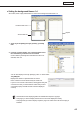


Table Of Contents
- Introduction
- Installing/Launching
- Setting Up a Server
- Launching
- Creating/Editing Programs
- The main Program Editor window
- Creating programs
- ● Valid content files
- ● Positioning content (Layout)
- ● Setting the background/frames 1-4
- ● Setting the scroll message
- ● Setting audio and music
- ● Setting the PIP window
- ● Saving a program
- ● Opening a program
- ● Checking a program
- ● Deleting a program
- ● Displaying program properties
- ● Importing/exporting a program
- Setting Information for logging in to the management PC
- Uploading/Downloading Programs, Content and Scroll Messages
- Deleting Programs, Content and Scroll Messages on the Server
- RSS Editor
- Conditional Content
- Creating/Editing Timetables
- Creating/Editing Schedules
- Logging In
- Panel Management
- Distributing
- Management
- User Management
- Viewer Update
- Schedule Reception/Program Display
- Key/Mouse Monitoring

42
Program Editor
● Positioning content (Layout)
Screensandcontentsizeandposition,etc.,aresetinthe
[Layout] window.
When “Layout Locked.” is displayed in the center of the layout window, the layout cannot be
edited.
Clearthe“Thelayouteditislocked.”checkboxinthe[PropertiesofProgram]dialogbox(
F
p.60).
1. Check that the [Layout] tab is selected.
If it is not, click the [Layout] tab to select it.
2. Set a [Screen Top-Left Position].
Set the coordinates (-9999 - 9999) for where you want the top
left hand corner of the background to be positioned in the panel.
“X”and“Y”areusuallysetto“0”.(Default)
3. Set the “Screen Size”.
Thescreensizeisthesizeofthebackground.
Selectthe“PresetScreenSize”optionbutton,andchoosea
sizefromthelist.
Thisisusuallysettothesizeofthepanel(i.e.panel
resolution).
•
Ifthesizeyouwantisnotinthelist,selectthe
“CustomScreenSize”optionbutton,andenterasize.
•Tochangethepresetscreensizesinthelist,editthe“ScreenSize.dat”filefoundinthefolder
whereyouinstalledthissoftware(thedefaultdirectoryis,C:\ProgramFiles\SHARP\SHARPDigital
SignageSoftware)specifyingsizesinorderof“Width”then“Height”asintheexamplesbelow.
1280,1024
1920,1080
1366,768
WhenyoustartProgramEditorthescreensizeonthefirstlinewillbeselected.
•If you want to combine multiple panels and have
them displayed as one panel, click [Calculate
screensizeforMultidisplay]andsetthescreen
sizesimplybyselectingthemodelnameand
direction.
•Whenyouclick[CalculatescreensizeforMulti
display],the[MonitorSettings]dialogboxwill
appear. You can set Model Name, Composition and
Direction for multiple monitors.
[Layout] window