
Operation Manual


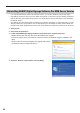


Table Of Contents
- Introduction
- Installing/Launching
- Setting Up a Server
- Launching
- Creating/Editing Programs
- The main Program Editor window
- Creating programs
- ● Valid content files
- ● Positioning content (Layout)
- ● Setting the background/frames 1-4
- ● Setting the scroll message
- ● Setting audio and music
- ● Setting the PIP window
- ● Saving a program
- ● Opening a program
- ● Checking a program
- ● Deleting a program
- ● Displaying program properties
- ● Importing/exporting a program
- Setting Information for logging in to the management PC
- Uploading/Downloading Programs, Content and Scroll Messages
- Deleting Programs, Content and Scroll Messages on the Server
- RSS Editor
- Conditional Content
- Creating/Editing Timetables
- Creating/Editing Schedules
- Logging In
- Panel Management
- Distributing
- Management
- User Management
- Viewer Update
- Schedule Reception/Program Display
- Key/Mouse Monitoring

24
Personal rewall settings
If you plan to distribute content over a network, you must free a TCP/IP port for the SHARP Digital Signage
SoftwareViewerVersiontousewhenthedistributionportisassignedtoapersonalfirewall.
IfyouhaveinstalledtheServerVersion,auniqueWebserverwillbeinstalled,andstartedasaservice.
ThedefaultTCP/IPportnumberis80.Ifyouchangetheportnumber,youmustalsochangetheHTTP
communication setting for the management PC (
F
p.32),andtheHTTPcommunicationsettingfor
Client Scheduler on the viewer PC (
F
p.155) to the same port number.
Firewall settings for Status Monitoring Tool (Windows Vista/7 Only)
IfusingWindowsVista/7,usethefollowingproceduretochangethesesettings.
1. From the Windows Taskbar, click [Start], [Control Panel], [System and Maintenance] (for Windows
Vista) or [System and Security] (for Windows 7), and then [Administrative Tools].
2. Double-click “Windows Firewall with Advanced Security”.
3. If the [User Account Control] window appears,
click [Continue] (for Windows Vista) or [Yes] (for
Windows 7).
The[WindowsFirewallwithAdvancedSecurity]dialogbox
will appear.
4. On the left of the window, click [Inbound Rules], then
click “New Rule” under [Actions] in the pane on the right
of the window.
The[NewInboundRuleWizard]dialogboxwillappear.