
Operation Manual
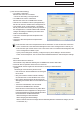


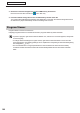


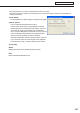

Table Of Contents
- Introduction
- Installing/Launching
- Setting Up a Server
- Launching
- Creating/Editing Programs
- The main Program Editor window
- Creating programs
- ● Valid content files
- ● Positioning content (Layout)
- ● Setting the background/frames 1-4
- ● Setting the scroll message
- ● Setting audio and music
- ● Setting the PIP window
- ● Saving a program
- ● Opening a program
- ● Checking a program
- ● Deleting a program
- ● Displaying program properties
- ● Importing/exporting a program
- Setting Information for logging in to the management PC
- Uploading/Downloading Programs, Content and Scroll Messages
- Deleting Programs, Content and Scroll Messages on the Server
- RSS Editor
- Conditional Content
- Creating/Editing Timetables
- Creating/Editing Schedules
- Logging In
- Panel Management
- Distributing
- Management
- User Management
- Viewer Update
- Schedule Reception/Program Display
- Key/Mouse Monitoring

161
Key/Mouse Monitoring Tool
Key/Mouse Monitoring
Thissectionexplainsthefunctionofswitchingdisplayedprogramsusingkeyboardandmouseoperations.
Key/Mouse Monitoring Tool Window
● Launching the Key/Mouse Monitoring Tool window
1. From the Windows Taskbar, click [Start], [All Programs], [SHARP Digital Signage Software], [Tools]
and then [Key-Mouse Watcher].
The key/mouse monitoring tool launches and an icon (
) is displayed (and remains permanently) in the
Task Tray.
● Key/Mouse Monitoring Tool menu
FromthemenuthatappearswhentheiconintheTaskTrayis
right-clicked, the following operations can be performed.
Conguration
SettheoperationmodeoftheKey/MouseMonitoringTool.
• “Disable”optionbutton
DisablestheoperationoftheKey/MouseMonitoringTool.
• “ScreenSaverMode”optionbutton
If a keyboard or mouse operation is performed, display of
the program is stopped temporarily.
If a keyboard or mouse operation is not performed for a
certain period of time, the distributed program is displayed.
Byclicking[Configuration],thefollowingsettingcanbe
performed.
The period of time before the program display is
resumed
The program display is resumed by pressing the [Ctrl],
[Alt], and [V] keys.
• “ChangeProgramMode”optionbutton
By assigning an action to a combination of keys, the
action can be performed by key operation.
Upto20actionscanbeassigned.
Set the key assignment and action by clicking
[Configuration].