
Operation Manual

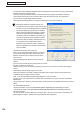
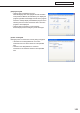

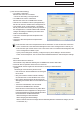


Table Of Contents
- Introduction
- Installing/Launching
- Setting Up a Server
- Launching
- Creating/Editing Programs
- The main Program Editor window
- Creating programs
- ● Valid content files
- ● Positioning content (Layout)
- ● Setting the background/frames 1-4
- ● Setting the scroll message
- ● Setting audio and music
- ● Setting the PIP window
- ● Saving a program
- ● Opening a program
- ● Checking a program
- ● Deleting a program
- ● Displaying program properties
- ● Importing/exporting a program
- Setting Information for logging in to the management PC
- Uploading/Downloading Programs, Content and Scroll Messages
- Deleting Programs, Content and Scroll Messages on the Server
- RSS Editor
- Conditional Content
- Creating/Editing Timetables
- Creating/Editing Schedules
- Logging In
- Panel Management
- Distributing
- Management
- User Management
- Viewer Update
- Schedule Reception/Program Display
- Key/Mouse Monitoring

160
FTP Server/Client Scheduler
3. Remove the external storage device such as USB memory from the PC.
Remove it from the safe removal icon (
) in the Task Tray.
4. Insert the external storage device such as USB memory into the viewer PC.
Thecontentwillbedistributedautomatically.Afterdistributioniscomplete,theexternalstoragedevicesuch
asUSBmemorystopsautomatically.Checkthemessageandremoveit.
Program Viewer
Program Viewer is used on the viewer PC.
It displays programs based on schedules and break-in programs loaded by Client Scheduler.
•Topauseaprogram,right-clicktheClientSchedulericon,andfromthemenuthatappears,click[Pause
to View Program].
•TochangeadvancedsettingsforProgramViewer,right-clicktheClientSchedulericonandfromthe
menuthatappears,click[Setting].Settingscanbeadjustedfromthe[SettingofClientScheduler]dialog
boxthatappears.(
F
p.151)
•Theoldschedulesarenolongerrequiredafterthenewscheduleshavebeensent.Unnecessary
schedulesandtheirassociatedcontentwillbeautomaticallydeletedthenexttimeClientScheduler
starts.