
Operation Manual


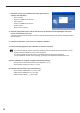


Table Of Contents
- Introduction
- Installing/Launching
- Setting Up a Server
- Launching
- Creating/Editing Programs
- The main Program Editor window
- Creating programs
- ● Valid content files
- ● Positioning content (Layout)
- ● Setting the background/frames 1-4
- ● Setting the scroll message
- ● Setting audio and music
- ● Setting the PIP window
- ● Saving a program
- ● Opening a program
- ● Checking a program
- ● Deleting a program
- ● Displaying program properties
- ● Importing/exporting a program
- Setting Information for logging in to the management PC
- Uploading/Downloading Programs, Content and Scroll Messages
- Deleting Programs, Content and Scroll Messages on the Server
- RSS Editor
- Conditional Content
- Creating/Editing Timetables
- Creating/Editing Schedules
- Logging In
- Panel Management
- Distributing
- Management
- User Management
- Viewer Update
- Schedule Reception/Program Display
- Key/Mouse Monitoring

16
7. Select the version to be installed in the Setup Type selection
window, and click [Next].
• Server Version:
Select “Pro WEB Server Version”.
• Client Version:
Select “Pro WEB Client Version”.
• Viewer Version:
Select “Viewer Version”.
8. Enter the appropriate license code for the version to be installed, and click [Next].(For the Server
Version and Viewer Version only)
Alicensecodeshouldbeobtainedinaccordancewiththestepsdescribedinthelicensecertificateincluded
with this product.
9. Follow the instructions on the screen to complete installation.
10. If the restart dialog appears after installation is nished, click [Yes].
If you input a temporary license code when installing the Server Version and Viewer Version, you will
be able to use the software for a two-month trial period.
You should register the license code you obtained before the end of the trial period.
You can register the license code from [Help] - [Version] in Pro WEB Server Management Tool.
Once the installation is complete, congure the following settings.
•ViewerVersion:SettheenvironmentoftheviewerPC(
F
p.17).
•ServerVersion:SettingupaServer(
F
p.28)
For operation after the setup, refer to the following.
•ServerVersion:WEBServer(
F
p.100to148)
•ClientVersion:WEBClient(
F
p.37to99)
•ViewerVersion:Viewer(
F
p.149to163)