
Operation Manual

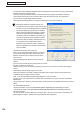
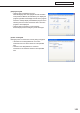

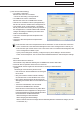


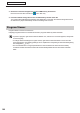
Table Of Contents
- Introduction
- Installing/Launching
- Setting Up a Server
- Launching
- Creating/Editing Programs
- The main Program Editor window
- Creating programs
- ● Valid content files
- ● Positioning content (Layout)
- ● Setting the background/frames 1-4
- ● Setting the scroll message
- ● Setting audio and music
- ● Setting the PIP window
- ● Saving a program
- ● Opening a program
- ● Checking a program
- ● Deleting a program
- ● Displaying program properties
- ● Importing/exporting a program
- Setting Information for logging in to the management PC
- Uploading/Downloading Programs, Content and Scroll Messages
- Deleting Programs, Content and Scroll Messages on the Server
- RSS Editor
- Conditional Content
- Creating/Editing Timetables
- Creating/Editing Schedules
- Logging In
- Panel Management
- Distributing
- Management
- User Management
- Viewer Update
- Schedule Reception/Program Display
- Key/Mouse Monitoring

151
FTP Server/Client Scheduler
Client Scheduler
Client Scheduler is used on the viewer PC.
Itloadstheschedulesandbreak-inprogramsthathavebeenreceivedbytheFTPServer,andcontrolsthe
ProgramViewertodisplayspecifiedprogramsatthespecifiedtime.
● Launching Client Scheduler
Client Scheduler is automatically launched by “Startup” when Windows launches.
When Client Scheduler launches, an icon (
) is displayed (and resides permanently) in the Task Tray.
● Client Scheduler menu
The menu that appears when the icon in the Task Tray is
right-clicked performs the following actions:
Setting
Clickingthe[Setting]menudisplaysthe[SettingofClientScheduler]dialogbox.Thetabsinthisdialogbox
contain the following settings:
[Program Viewer] tab
Contains detailed settings for the Program Viewer.
• Youcanviewprogramsevenwhenthereareno
programs being displayed by checking the “Paint the
programviewarea,ifnoprogramisplayed.”checkbox.
Set the display content by clicking [Paint Setting].
· [Dark blue] option button
Displaystheareadefinedby“Displayarea”settingsin
dark blue.
· “Contentfile”optionbutton
Setsthecontentfilepath,displaymethod,and
backgroundcolorfromthe[Settingofthecontentsfile]
dialogboxthatappearswhen[Setting]isclicked.
1) Click[Ref],andselectacontentfile.Youmayselect
anyfileformatthatissupportedbythisproduct.
2) Selecta“Displaymode”fromthe“Keepingaspect
ratio”,“Notkeepingaspectratio”,or“Inoriginalsize”
option buttons.
3) Setthe“Backgroundcolor”.
· “Program” option button
Click[Import],andselectanexistingprogram.Youmay
selectprogramsthathavebeenexportedwithProgram
Editor.