
Operation Manual


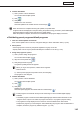


Table Of Contents
- Introduction
- Installing/Launching
- Setting Up a Server
- Launching
- Creating/Editing Programs
- The main Program Editor window
- Creating programs
- ● Valid content files
- ● Positioning content (Layout)
- ● Setting the background/frames 1-4
- ● Setting the scroll message
- ● Setting audio and music
- ● Setting the PIP window
- ● Saving a program
- ● Opening a program
- ● Checking a program
- ● Deleting a program
- ● Displaying program properties
- ● Importing/exporting a program
- Setting Information for logging in to the management PC
- Uploading/Downloading Programs, Content and Scroll Messages
- Deleting Programs, Content and Scroll Messages on the Server
- RSS Editor
- Conditional Content
- Creating/Editing Timetables
- Creating/Editing Schedules
- Logging In
- Panel Management
- Distributing
- Management
- User Management
- Viewer Update
- Schedule Reception/Program Display
- Key/Mouse Monitoring

147
Viewer Update
● Distributing system settings les (for service persons)
This function is to be used only by service persons. This is not to be used during normal operations.
Click the “Viewer Update” function tab.1.
Ifthe“ViewerUpdate”tabisnotshown,changethesettingsinShow/HideMenuTabs.(
+p.105)
Select panels.2.
Usethegrouptreetoshowonlythepanelsregisteredinagrouponthelist.•
Specifyafiltertoshowonlythepanelsthatsatisfytheconditionsonthelist.(•
+p.104)
Assign a system setting le to a panel.3.
1) Clickapaneltoassignafileto.
You can also select multiple panels.
2) Align the mouse pointer with
.
3) Click[AssignSystemSettingFiles].
The[ViewerUpdate]windowwillappears.
•Whenyouloginasasupervisor,“SelectTenant”appears.
•Selectatenant.
4) Selectafileandclick[OK].
Thesystemsettingfileisnowassigned.
Con rm distribution4.
1) Clickapaneltoconfirmdistribution.
You can also select multiple panels.
2) Click
.
3) Click[OK].
Distributionisnowconfirmed.Confirmedsystemsettingfilesaremarkedwiththeconfirmedsign(
).
● Uploading a system le
UploadasystemfiletothemanagementPC.
From the Windows taskbar, click [Start], [All Programs], [SHARP Digital Signage Software], 1.
[Tools], and [System File Uploader].
“SystemFileUploader”willlaunch.
Click [Refer] and select a system le in the dialog box.2.
Click [Upload].3.
The login information will appear.
Enter the login information. (The operating procedure is the same as that on p.62)4.
Click [OK].5.
Click[Configure]tochangethelogininformation.