
Operation Manual




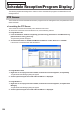
Table Of Contents
- Introduction
- Installing/Launching
- Setting Up a Server
- Launching
- Creating/Editing Programs
- The main Program Editor window
- Creating programs
- ● Valid content files
- ● Positioning content (Layout)
- ● Setting the background/frames 1-4
- ● Setting the scroll message
- ● Setting audio and music
- ● Setting the PIP window
- ● Saving a program
- ● Opening a program
- ● Checking a program
- ● Deleting a program
- ● Displaying program properties
- ● Importing/exporting a program
- Setting Information for logging in to the management PC
- Uploading/Downloading Programs, Content and Scroll Messages
- Deleting Programs, Content and Scroll Messages on the Server
- RSS Editor
- Conditional Content
- Creating/Editing Timetables
- Creating/Editing Schedules
- Logging In
- Panel Management
- Distributing
- Management
- User Management
- Viewer Update
- Schedule Reception/Program Display
- Key/Mouse Monitoring

143
Viewer Update
Viewer Update
This button lets you update the SHARP Digital Signage Software Viewer Version on the viewer PC and change
settings of the viewer PC.
* Change the settings in Show / Hide Menu Tabs so that the “Viewer Update” tab is shown. (+p.105)
* This is not to guarantee any future software update.
2)
1)
3) 4) 5) 6)
7)
1) Operation toolbar
Assignsasystemfile(suchasupdatersorsettings)toapanel(ortheviewerPCthatisconnectedto)
for distribution. Select a panel to assign and click this icon. (+p.144)
Revertstothestatebeforethesystemfilewasassigned.
Select a panel to revert and click this icon.
Stopsuncompletedsystemfiledistributionandcancelstheconfirmation.
Select a panel to stop distribution and click this icon.
Resendthesystemfileforwhichadistributionerrorhasoccurred.
Select a panel to resend and click this icon.
Cancelstheconfirmationofthesystemfilewhichwasassignedtoapanel(ortheviewerPCthatis
assignedto)andconfirmed.Selectapaneltocanceltheconfirmationandclickthisicon.
Confirmsassignmentofasystemfileandreservesdistribution.
Selectapaneltoconfirmandclickthisicon.(+p.144)
(*)
Approvethesystemfile.Onlyauserwithapprovalauthoritycanmakeapprovals.
Selectthepanelwiththedistributionthatrequiresapproval,andclickthisicon.
(*)
Rejectthesystemfile.Onlyauserwithapprovalauthoritycanmakeapprovals.
Ifrejected,distributionwillnottakeplace.Selectthepanelwiththedistributionthatrequiresapproval,
and click this icon.
Displays the list of data uploaded to the management PC and deletes it. (+p.131)
* This appears when the logged in user meets the following conditions.
1. Enable the distribution approval function using Pro Web Server Management Tool.
2. Selectthe“ViewerUpdateApproval”checkboxinAddNewUserGroup(
F
p.140).
3. Theuserwhologgedinisregisteredinausergroupandhasapprovalauthority.