
Operation Manual


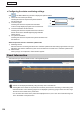


Table Of Contents
- Introduction
- Installing/Launching
- Setting Up a Server
- Launching
- Creating/Editing Programs
- The main Program Editor window
- Creating programs
- ● Valid content files
- ● Positioning content (Layout)
- ● Setting the background/frames 1-4
- ● Setting the scroll message
- ● Setting audio and music
- ● Setting the PIP window
- ● Saving a program
- ● Opening a program
- ● Checking a program
- ● Deleting a program
- ● Displaying program properties
- ● Importing/exporting a program
- Setting Information for logging in to the management PC
- Uploading/Downloading Programs, Content and Scroll Messages
- Deleting Programs, Content and Scroll Messages on the Server
- RSS Editor
- Conditional Content
- Creating/Editing Timetables
- Creating/Editing Schedules
- Logging In
- Panel Management
- Distributing
- Management
- User Management
- Viewer Update
- Schedule Reception/Program Display
- Key/Mouse Monitoring

134
Management
Enable Screen capture Sets whether to retrieve the image currently displayed by the viewer PC as a part of
the panel status.
The captured image will be displayed as the thumbnail.
Disable Screen capture
(4) Network Status
Displays the network status for status monitoring and control.
(5) Network Acknowledgment
Displays the acknowledgment results of communication.
(6) Panel Status
Displays the retrieved panel status.
(7) Current Program
Displays the name of the currently displayed program.
(8) File Version, Software License Information
Displays the version and the software license information of the SHARP Digital Signage Software Viewer
Version installed in the viewer PC.
(9) PC system information
Displays the PC system information of the viewer PC. Place the cursor over this item to view more details.
IftheOperatingSystemoftheviewerPCisolderthantheWindows2000ServicePack1,theinformationon
“CPUusagerate”,“numberofthreads”and“numberofhandles”cannotberetrieved.
(10) System Files Last retrieval date and time
DisplaysthedateandtimeoftheretrievalofsystemfilesfromtheviewerPCs.
(11) Panel icon/thumbnail
Displays the retrieved panel status in terms of icons and thumbnails.
Panel icon/thumbnail Description
The viewer PC is in any of the following status.
•Thepanel/viewerPCstatuscannotbeacquired.
•There is no response from the viewer PC.
•There is a response from the viewer PC, but screen captures of the currently
displayedscreencannotbeacquired.
(Exampleimageonly)
Displayed when there is a response from the viewer PC and screen captures of the
currently displayed screen have been retrieved.
* Thumbnails of retrieved screen captures will be displayed. (It differs depending on
the display of the viewer PC.)
PanelscanbedisplayedselectivelyusingtheGrouptreeortheFilterbar.
ForPULLtypedistribution,controlisperformedwhenaccessismadefromtheviewerPC.