
Operation Manual

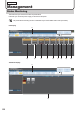

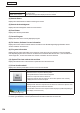
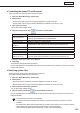
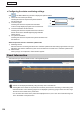
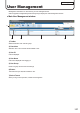


Table Of Contents
- Introduction
- Installing/Launching
- Setting Up a Server
- Launching
- Creating/Editing Programs
- The main Program Editor window
- Creating programs
- ● Valid content files
- ● Positioning content (Layout)
- ● Setting the background/frames 1-4
- ● Setting the scroll message
- ● Setting audio and music
- ● Setting the PIP window
- ● Saving a program
- ● Opening a program
- ● Checking a program
- ● Deleting a program
- ● Displaying program properties
- ● Importing/exporting a program
- Setting Information for logging in to the management PC
- Uploading/Downloading Programs, Content and Scroll Messages
- Deleting Programs, Content and Scroll Messages on the Server
- RSS Editor
- Conditional Content
- Creating/Editing Timetables
- Creating/Editing Schedules
- Logging In
- Panel Management
- Distributing
- Management
- User Management
- Viewer Update
- Schedule Reception/Program Display
- Key/Mouse Monitoring

133
Management
1) Operation toolbar
Monitors the panels automatically.
The information of the panels registered with the “Enable Automatic status checking” option is
retrieved at regular intervals and displayed.
The interval for information retrieval can be changed in the Status Monitoring Options settings.
(+p.136)
Stops the automatic monitoring of the panels.
Displays the panel status as a list.
Displays the panel status by thumbnails.
Thethumbnailsizecanbechanged.
Retrieves the panel status.
Selectapaneltoretrievetheconfirmationandclickthisicon.
This button lets you control the viewer PCs and the panels, such as turning the power on and
off. (+p.135)
ThisbuttonisforretrievingthesystemfilesoftheviewerPCs.(+p.135)
Cancelspanelstatusacquisition.
Configuresthesettingsforstatuscontrolandmonitoring.
Displays models supporting the information display.
* Displays them with a new tab.
Forthedisplaydetails,refertop.82.
2) Panel Name
Displays the panel names.
PanelscanbedisplayedselectivelyusingtheGrouptreeortheFilterbar.
Clicking▲▼intheheadersortsthepanelnamesinascendingordescendingorder.
Panel information in the following pages can be displayed by selecting a page number form the “Page No” list
box.
Youcanselectthenumberofpanelstobedisplayedfrom10,20or30inthe“PanelsPerPage”listbox.
3) Status Monitoring Options list
Displays the content of the Status Monitoring Options settings for each panel.
The settings can be changed in the menu displayed by placing the cursor over the panel.
Enable Automatic status
checking
Sets whether to update the screen or not when the panels are monitored automatically.
Disable Automatic status
checking