
Operation Manual


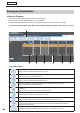


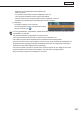


Table Of Contents
- Introduction
- Installing/Launching
- Setting Up a Server
- Launching
- Creating/Editing Programs
- The main Program Editor window
- Creating programs
- ● Valid content files
- ● Positioning content (Layout)
- ● Setting the background/frames 1-4
- ● Setting the scroll message
- ● Setting audio and music
- ● Setting the PIP window
- ● Saving a program
- ● Opening a program
- ● Checking a program
- ● Deleting a program
- ● Displaying program properties
- ● Importing/exporting a program
- Setting Information for logging in to the management PC
- Uploading/Downloading Programs, Content and Scroll Messages
- Deleting Programs, Content and Scroll Messages on the Server
- RSS Editor
- Conditional Content
- Creating/Editing Timetables
- Creating/Editing Schedules
- Logging In
- Panel Management
- Distributing
- Management
- User Management
- Viewer Update
- Schedule Reception/Program Display
- Key/Mouse Monitoring

130
Distributing
●
Distributing emergency scroll messages and stop commands for scroll message
This button lets you distribute scroll message for emergency.
To stop displaying a scroll message in the middle, send a stop command for scroll message.
1. Click the “Emergency Scroll Message” function tab.
If the “Emergency Scroll Message” tab is not shown, change the settings in Show / Hide Menu Tabs.
(
+p.105)
2. Select panels.
Usethegrouptreetoshowonlythepanelsregisteredinagrouponthelist.•
Specifyafiltertoshowonlythepanelsthatsatisfytheconditionsonthelist.(•
+p.104)
3. Assign a scroll message (or a stop command) to a panel.
1) Click a panel to assign a scroll message (or a stop command).
You can also select multiple panels.
2) Align the mouse pointer with
.
To assign an emergency scroll message:
3) Click[AssignScrollMessage].
The [Emergency Scroll Message] window will appear.
4) Selectthescrollmessagedataandclick[OK].
The emergency scroll message is now assigned.
To assign a stop command:
3) Click[AssignStopCommandForScrollMessage].
The stop command is now assigned.
•Whenyouloginasasupervisor,“SelectTenant”appears.
•Selectatenant.
4. Con rm distribution.
1) Clickapaneltoconfirmdistribution.
You can also select multiple panels.
2) Click
.
3) Click[OK].
Distributionisnowconfirmed.
Confirmedscrollmessages(orstopcommands)are
markedwiththeconfirmedsign(
).
•SpecifythepositiontodisplaytheemergencyscrollmessageusingtheSHARPDigitalSignage
Software Client Scheduler on the viewer PC.
•Whentheemergencyscrollmessageisdisplayed,thescrollmessagedisplayedintheoriginalprogram
will not be displayed.