
Operation Manual


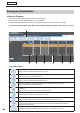


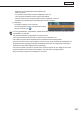


Table Of Contents
- Introduction
- Installing/Launching
- Setting Up a Server
- Launching
- Creating/Editing Programs
- The main Program Editor window
- Creating programs
- ● Valid content files
- ● Positioning content (Layout)
- ● Setting the background/frames 1-4
- ● Setting the scroll message
- ● Setting audio and music
- ● Setting the PIP window
- ● Saving a program
- ● Opening a program
- ● Checking a program
- ● Deleting a program
- ● Displaying program properties
- ● Importing/exporting a program
- Setting Information for logging in to the management PC
- Uploading/Downloading Programs, Content and Scroll Messages
- Deleting Programs, Content and Scroll Messages on the Server
- RSS Editor
- Conditional Content
- Creating/Editing Timetables
- Creating/Editing Schedules
- Logging In
- Panel Management
- Distributing
- Management
- User Management
- Viewer Update
- Schedule Reception/Program Display
- Key/Mouse Monitoring

129
* This appears when the logged in user meets the following conditions.
1. Enable the distribution approval function using Pro Web Server Management Tool.
2. Selectthe“EmergencyScrollingMessageApproval”checkboxinAddNewUserGroup(
F
p.140).
3. Theuserwhologgedinisregisteredinausergroupandhasapprovalauthority.
2) Panel Name
Displays the panel names.
PanelscanbedisplayedselectivelyusingtheGrouptreeortheFilterbar.
Clicking▲▼intheheadersortsthepanelnamesinascendingordescendingorder.
Panel information in the following pages can be displayed by selecting a page number form the “Page No” list
box.
Youcanselectthenumberofpanelstobedisplayedfrom10,20or30inthe“PanelsPerPage”listbox.
3) Scroll message Data
Displays the details of the scroll messages assigned to the panels.
4) Status
Showsthedateandtimeofapprovalorrejection.Ifapprovalispending,shows“Waintingforapproval”.
Appears when the distribution approval function has been enabled using Pro Web Server Management Tool.
5) Distribution Information
Displaystheconfirmeddatesandtimesofdistribution.
6) Distribution Start
Displays the dates and times the distribution is started.
7) Distribution Complete
Displays the dates and times the distribution is completed.
If the distribution is not completed properly, the reason will be displayed.
InPULLtypedistribution,thedistributionwillstartatthetimeofthefirstaccessfromtheviewerPCafter
thedistributionisconfirmed.
Distributing