
Operation Manual


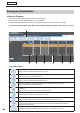


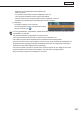


Table Of Contents
- Introduction
- Installing/Launching
- Setting Up a Server
- Launching
- Creating/Editing Programs
- The main Program Editor window
- Creating programs
- ● Valid content files
- ● Positioning content (Layout)
- ● Setting the background/frames 1-4
- ● Setting the scroll message
- ● Setting audio and music
- ● Setting the PIP window
- ● Saving a program
- ● Opening a program
- ● Checking a program
- ● Deleting a program
- ● Displaying program properties
- ● Importing/exporting a program
- Setting Information for logging in to the management PC
- Uploading/Downloading Programs, Content and Scroll Messages
- Deleting Programs, Content and Scroll Messages on the Server
- RSS Editor
- Conditional Content
- Creating/Editing Timetables
- Creating/Editing Schedules
- Logging In
- Panel Management
- Distributing
- Management
- User Management
- Viewer Update
- Schedule Reception/Program Display
- Key/Mouse Monitoring

123
Distributing
3) Panel Name
Displays the panel names.
PanelscanbedisplayedselectivelyusingtheGrouptreeortheFilterbar.
Clicking▲▼intheheadersortsthepanelnamesinascendingordescendingorder.
Panel information in the following pages can be displayed by selecting a page number form the “Page No” list
box.
Youcanselectthenumberofpanelstobedisplayedfrom10,20or30inthe“PanelsPerPage”listbox.
4) Retrieve Schedule Status
Displays the names of retrieved schedules and the dates and times when their retrieval was complete.
5) Calendar (day view)
Foreachday,thedetailsofthetimetableforthedayisdisplayed.
6) Timetable list (hour view)
Foreachday,thedetailsofthetimetablesetforthedayisdisplayed.
7) Timetable (hour view)
Foreachday,thetimetablesetforthedayisdisplayed.
When the cursor is placed over a program, the thumbnail is displayed.