
Operation Manual


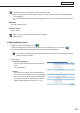


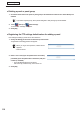
Table Of Contents
- Introduction
- Installing/Launching
- Setting Up a Server
- Launching
- Creating/Editing Programs
- The main Program Editor window
- Creating programs
- ● Valid content files
- ● Positioning content (Layout)
- ● Setting the background/frames 1-4
- ● Setting the scroll message
- ● Setting audio and music
- ● Setting the PIP window
- ● Saving a program
- ● Opening a program
- ● Checking a program
- ● Deleting a program
- ● Displaying program properties
- ● Importing/exporting a program
- Setting Information for logging in to the management PC
- Uploading/Downloading Programs, Content and Scroll Messages
- Deleting Programs, Content and Scroll Messages on the Server
- RSS Editor
- Conditional Content
- Creating/Editing Timetables
- Creating/Editing Schedules
- Logging In
- Panel Management
- Distributing
- Management
- User Management
- Viewer Update
- Schedule Reception/Program Display
- Key/Mouse Monitoring

110
Panel Management
● Deleting a panel or panel group
1. Check the check box for the panel or panel group to be deleted in the Panel List or Panel Group List
window.
If you select a panel group, all the panels assigned to that panel group will be deleted.
2. Click
(Panel) or (Panel Group).
Aconfirmationmessagewillappear.
3. Click [OK].
● Registering the FTP settings default values for adding a panel
FTPsettingsforaddingapanelcanbesetinadvance.
1. Click [FTP Setting] in the Panel or Panel Group List window.
The[DefaultFTPSetting]windowwillappear.
•Whenyouloginasasupervisor,“SelectTenant”
appears.
•Selectatenant.
2. Enter a user name (up to 30 alphanumeric characters),
password (up to 30 alphanumeric characters) and port
number (1 to 65535).
• Theinitialdefaultvaluesareasfollows:
Username:ftp,Password:ftp,Portnumber:21
3. Click [OK].