
Operation Manual
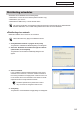


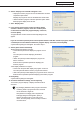

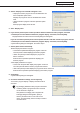
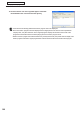
Table Of Contents
- Introduction
- Installing/Launching
- Program Creation/Editing
- The main Program Editor window
- Creating programs
- ●Valid content files
- ●Positioning content (Layout)
- ●Setting the background/frames 1-4
- ●Setting the scroll message
- ●Setting audio and music
- ●Setting the PIP window
- ●Saving a program
- ●Opening a program
- ●Checking a program
- ●Preview Program Display Settings
- ●Deleting a program
- ●Displaying program properties
- ●Importing/exporting a program
- RSS Editor
- Conditional Content
- Creating/Editing a Timetable
- Creating/Editing Schedules
- Panel Management and Option
- Distributing schedules
- Schedule Management
- Schedule Reception/Program Display
- Key/Mouse Monitoring
- Monitoring status

96
Schedule Distribution Tool
Displaying break-in programs
Displaying break-in programs
●Distributing via a network and making a break-in display
•ThisfunctionisonlyavailablewiththeNetworkVersion.
•Ifordinaryscheduledistributionandbreak-indistributionoverlap,thebreak-indistributionhasthehigher
priority in processing.
1. Click [Distribute schedule or program to the panel].
The[SelectionofDistributionMethods]dialogboxwillappear.
2. Select the “Distribute the program through network and make a
break-in display” radio button, and click [Next].
The[SelectionoftheBreak-inProgram]dialogboxwillappear.
3. Select a program, and click [Next].
The[SelectionoftheDistributionTarget]dialogboxwillappear.
4. Check the check boxes for all the panels and/or groups that the
schedule is to be sent to.
Clickingthebuttonsinthetoprightofthewindowwillallowyou
toaddoreditpanelsandgroupsinthesamewayasthe[Panel
Management]window(
F
p.84).Foradescriptionofbuttonactions,
refer to p.92.
5. Click [Next].
The[DisplayTimeandPeriodsofBreak-inProgram]willappear.