
Operation Manual


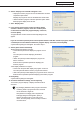

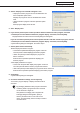
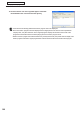
Table Of Contents
- Introduction
- Installing/Launching
- Program Creation/Editing
- The main Program Editor window
- Creating programs
- ●Valid content files
- ●Positioning content (Layout)
- ●Setting the background/frames 1-4
- ●Setting the scroll message
- ●Setting audio and music
- ●Setting the PIP window
- ●Saving a program
- ●Opening a program
- ●Checking a program
- ●Preview Program Display Settings
- ●Deleting a program
- ●Displaying program properties
- ●Importing/exporting a program
- RSS Editor
- Conditional Content
- Creating/Editing a Timetable
- Creating/Editing Schedules
- Panel Management and Option
- Distributing schedules
- Schedule Management
- Schedule Reception/Program Display
- Key/Mouse Monitoring
- Monitoring status

94
Schedule Distribution Tool
Distributing schedules
5. Check the distribution settings, and click [Finish].
Thedistributionwillbeexecuted.
Distribution data can be packaged and saved as
asinglefilethatincludesscheduleinformation
including programs, timetables, and content.
Click[SavethePackage],andinthe[Savethe
Package]dialogboxthatappears,specifya
directorytosavethefileto.Thenentera“File
name”,andclick[Save].Thereisusuallynoneedto
use this function.
6. A screen like the one on the right will appear. Check that
the distribution was successful and click [Close].
●Distributing with USB memory or other external storage device
•DonotremovetheUSBmemoryorotherexternalstoragedevicefromyourPCuntilthetransferis
complete.
•CertainUSBdevicesandotherexternalstoragedevicesmaynotbeabletodistributecorrectly.
•SettheviewerPCto“Normalmode.”Ifitissetto“Contentsdirectdistributemode,”schedulescannotbe
distributed (
F
p.111).
1. Click [Distribute schedule or program to the panel].
The[SelectionofDistributionMethods]dialogboxwillappear.
2. Select the “Distribute the schedule using external
storage such as USB memory” option button, and click
[Next].
The[SelectiontheScheduletoDistribute]dialogboxwill
appear.