
Operation Manual


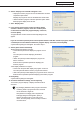

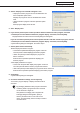
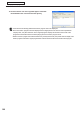
Table Of Contents
- Introduction
- Installing/Launching
- Program Creation/Editing
- The main Program Editor window
- Creating programs
- ●Valid content files
- ●Positioning content (Layout)
- ●Setting the background/frames 1-4
- ●Setting the scroll message
- ●Setting audio and music
- ●Setting the PIP window
- ●Saving a program
- ●Opening a program
- ●Checking a program
- ●Preview Program Display Settings
- ●Deleting a program
- ●Displaying program properties
- ●Importing/exporting a program
- RSS Editor
- Conditional Content
- Creating/Editing a Timetable
- Creating/Editing Schedules
- Panel Management and Option
- Distributing schedules
- Schedule Management
- Schedule Reception/Program Display
- Key/Mouse Monitoring
- Monitoring status

93
Schedule Distribution Tool
11. If you selected the “Distribute now” option button in step
7, a screen like the one on the right will appear. Check
that the distribution was successful and click [Close].
If you selected the “Distribute at specied date time”
option button in step 7, a screen like the one on the right
will appear. Click [OK].
•Scheduleandprogramdistributionmaytakesometime.Ifyouperformsimultaneousdistributionto
multiplepanels,dataisactuallysentsequentially.Forthisreason,theremaybesometimedifferencein
schedule and program distribution.
•Oldschedulesarenolongerrequiredafternewscheduleshavebeensent.Unnecessaryschedulesand
theirassociatedcontentwillbeautomaticallydeletedthenexttimeClientSchedulerstarts.
●Distributing to your own PC
These instructions only apply to the Standalone Version.
1. Click [Distribute schedule or program to the panel].
The[SelectionofDistributionMethods]dialogboxwillappear.
2. Select the “Distribute the schedule to your PC (My
computer)” option button, and click [Next].
The[SelectiontheScheduletoDistribute]dialogboxwill
appear.
3. Select a schedule.
If you want to add the selected schedule to the current open
scheduleonyourPC,checkthe“Addthisscheduleonthe
runningscheduleinthetargetpanel”checkbox.Iftheboxis
notchecked,thecurrentlyopenscheduleonyourPCwillbe
replaced with the currently selected schedule.
4. Click [Next].
A[Confirmation]dialogboxwillappear.
Distributing schedules