
Operation Manual




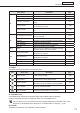

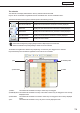

Table Of Contents
- Introduction
- Installing/Launching
- Program Creation/Editing
- The main Program Editor window
- Creating programs
- ●Valid content files
- ●Positioning content (Layout)
- ●Setting the background/frames 1-4
- ●Setting the scroll message
- ●Setting audio and music
- ●Setting the PIP window
- ●Saving a program
- ●Opening a program
- ●Checking a program
- ●Preview Program Display Settings
- ●Deleting a program
- ●Displaying program properties
- ●Importing/exporting a program
- RSS Editor
- Conditional Content
- Creating/Editing a Timetable
- Creating/Editing Schedules
- Panel Management and Option
- Distributing schedules
- Schedule Management
- Schedule Reception/Program Display
- Key/Mouse Monitoring
- Monitoring status

79
Schedule Editor
The calendar
ThecalendarcandisplaydatesbetweenJanuary2005andDecember2020.
Daysonwhichatimetableisregisteredshowthe“timetablecolor”andthe“timetablename”.
The buttons and lists at the top of the calendar perform the following actions:
Icon Menu option Description
Show Previous Month Displays the month before the month that is currently displayed.
SelectYear Displays the year selected for the month that is currently displayed.
Select Month Displays the month selected for the year that is currently displayed.
ShowNextMonth Displays the month after the month that is currently displayed.
Show This Month Displays the current month.
•Clickwhileholdingdown[Ctrl]or[Shift]toselectmultipledaysatthesametime.
•Selectatimetableandpress[Delete]todeleteitfromthecalendar.
Timetables are registered to different days depending on where they are dragged on the calendar.
Days that already have timetables registered to them will not be overwritten.
1) Dates
2) Weekday titles
3)Weektitles
4) All
1) Dates : Timetables will be added to the day to which they are dragged.
2) Weekday titles: Timetables will be added to the day of the week to which they are dragged for the currently
displayed month.
3)Weektitles: Timetableswillbeaddedtotheweektowhichtheyaredraggedforthecurrentlydisplayed
month.
4) All : Timetables will be added to every day of the currently displayed month.
Creating a schedule