
Operation Manual


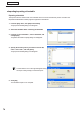




Table Of Contents
- Introduction
- Installing/Launching
- Program Creation/Editing
- The main Program Editor window
- Creating programs
- ●Valid content files
- ●Positioning content (Layout)
- ●Setting the background/frames 1-4
- ●Setting the scroll message
- ●Setting audio and music
- ●Setting the PIP window
- ●Saving a program
- ●Opening a program
- ●Checking a program
- ●Preview Program Display Settings
- ●Deleting a program
- ●Displaying program properties
- ●Importing/exporting a program
- RSS Editor
- Conditional Content
- Creating/Editing a Timetable
- Creating/Editing Schedules
- Panel Management and Option
- Distributing schedules
- Schedule Management
- Schedule Reception/Program Display
- Key/Mouse Monitoring
- Monitoring status

78
Schedule Editor
Creating a schedule
Creating a schedule
●Registering a timetable in the schedule
Timetable folder
1. Select the timetable folder containing the timetable.
2. Select a timetable from the “Timetable” list and click
,
or alternatively, double-click the timetable, or from the
[Edit] menu, click [Add Timetable to Schedule].
The[AddTimetabletoSchedule]dialogboxwillappear.
3. Set a “Span”.
This is the length of time that the program will be played for.
Specifydatesbetween1/1/2005and12/31/2020.
Ifyoudonotsetthe“Option”area,thetimeschedulewillbe
addedtotheentirespanfrom“Start”to“End”.
Usethe“Option”settingstoaddtimetablestospecifieddays
or weeks.
• Ifyoucheckthe“Selecttheday(s)oftheweekbelow:”
checkboxandthe“Sunday”to“Saturday”checkboxes,
thetimetablewillonlybeaddedtothespecifieddaysof
the week during the span.
• Ifyoucheckthe“Selecttheweek(s)ofthemonth
below:”checkboxandthe“1stweek”to“6thweek”
checkboxes,thetimetablewillonlybeaddedtothe
specifiedweeksduringthespan.
•
Ifyouspecifyboth“Selecttheday(s)oftheweekbelow:”
and“Selecttheweek(s)ofthemonthbelow:”,thetimetable
will only be added to days that meet both sets of conditions.
Forexample,setting“Selecttheday(s)oftheweekbelow:”to“Wednesday”,and“Selecttheweek(s)of
themonthbelow:”to“2ndweek”,wouldaddthetimetabletothesecondWednesdayofeverymonth.
4. Click [OK].
The timetable will be registered in the schedule.
Timetables may also be registered by dragging
themfromthe“Timetable”listtothe“Calendar”.
Registered timetables can be changed in the
calendar.
5. Repeat steps 2 to 3 as necessary and add all the
timetables that you want to display to the schedule.