
Operation Manual




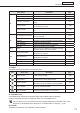

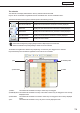

Table Of Contents
- Introduction
- Installing/Launching
- Program Creation/Editing
- The main Program Editor window
- Creating programs
- ●Valid content files
- ●Positioning content (Layout)
- ●Setting the background/frames 1-4
- ●Setting the scroll message
- ●Setting audio and music
- ●Setting the PIP window
- ●Saving a program
- ●Opening a program
- ●Checking a program
- ●Preview Program Display Settings
- ●Deleting a program
- ●Displaying program properties
- ●Importing/exporting a program
- RSS Editor
- Conditional Content
- Creating/Editing a Timetable
- Creating/Editing Schedules
- Panel Management and Option
- Distributing schedules
- Schedule Management
- Schedule Reception/Program Display
- Key/Mouse Monitoring
- Monitoring status

77
Schedule Editor
The main Schedule Editor window
Menu option Description
Relevant
page
File
Save Schedule Overwrites the currently edited schedule
F
p.80
Save Schedule As
Saves the currently edited schedule under a different name.
F
p.80
Delete Schedule Allows the user to specify and delete saved schedules.
F
p.81
Properties of Schedule
Allows the user to display and change the schedule
name.
F
p.81
Import Schedule
Readsaschedulethathasbeenexportedfromanother
PCsothatitcanbeused.
F
p.83
ExportSchedule
Writes out a schedule so that it can be used on another
PC.
F
p.82
Exit ExitsScheduleEditor. -
Edit
Add Timetable to Schedule
Addsthetimetablethatisselectedinthe“Timetable”
list to the schedule.
F
p.78
Delete Timetable from
Schedule
Deletesthetimetablethatisselectedinthe“Calendar”.
Timetablemayalsobedeletedbypressing[Delete].
F
p.79
CopyTimetable Copiestheselectedtimetable. -
Paste Timetable Pastes the copied timetable into a schedule. -
Select All Selects all timetables in the schedule. -
Option Setting
WhenyouuseProWebServer,checkthischeckbox.
Bydefault,thischeckboxisnotchecked.
View
Show Previous Month
Displays the month before the month that is currently
displayed in the calendar.
F
p.79
ShowNextMonth
Displays the month after the month that is currently
displayed in the calendar.
F
p.79
Show This Month Displays the current month in the calendar.
F
p.79
Refresh Updatesthe“Timetable”list. -
Help AboutScheduleEditor DisplaysversioninformationforScheduleEditor. -
3) Toolbar
The toolbar buttons (icons) perform the following actions:
Icon Menu option Description
Relevant
page
Open Schedule Loadsasavedschedule.
F
p.80
Save Schedule Overwrites the currently edited schedule.
F
p.80
Delete Timetable
Deletesthetimetablethatisselectedinthe“Calendar”.
Timetablemayalsobedeletedbypressing[Delete].
F
p.79
CopyTimetable Copiestheselectedtimetable. -
Paste Timetable Pastes the copied timetable into a schedule. -
4) “Timetable” list
ThetimetablefolderandthelistoftimetablescreatedwithTimetableEditoraredisplayed.
Inthelistoftimetable,therearetwocategories:“Name”and“LastModifiedTime”.
Thecoloroftheiconinfrontofthenameofeachtimetablerepresentsthe“timetablecolor”.Click
[PropertiesofTimetable]fromthe[File]menuin“TimetableEditor”tochangeit.(
F
p.79)
5) Calendar
Timetables are positioned on the calendar to create schedules.