
Operation Manual


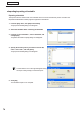


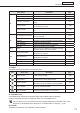

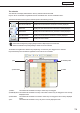

Table Of Contents
- Introduction
- Installing/Launching
- Program Creation/Editing
- The main Program Editor window
- Creating programs
- ●Valid content files
- ●Positioning content (Layout)
- ●Setting the background/frames 1-4
- ●Setting the scroll message
- ●Setting audio and music
- ●Setting the PIP window
- ●Saving a program
- ●Opening a program
- ●Checking a program
- ●Preview Program Display Settings
- ●Deleting a program
- ●Displaying program properties
- ●Importing/exporting a program
- RSS Editor
- Conditional Content
- Creating/Editing a Timetable
- Creating/Editing Schedules
- Panel Management and Option
- Distributing schedules
- Schedule Management
- Schedule Reception/Program Display
- Key/Mouse Monitoring
- Monitoring status

76
Schedule Editor
SettimetablescreatedwithTimetableEditortodisplayonasetday.
The main Schedule Editor window
●Launching Schedule Editor
1. Click on the Launcher window.
“ScheduleEditor”willlaunch.
WhenScheduleEditorlaunches,anewblankschedulewithnotimetablesassignedwillbedisplayed.
Schedules are completed after timetable is set on this screen.
ScheduleEditorcanalsobestartedbygoingtotheWindowsTaskbar,andclicking[Start],[All
Programs],[SHARPDigitalSignageSoftware],[Tools],andthen[ScheduleEditor].
●The main Schedule Editor window
1) Title bar
2) Menus
3)Toolbar
4)“Timetable”list
5)Calendar
1) Title bar
The name of the schedule will be displayed here.
WhenScheduleEditorlaunches,thetitlebarwillread“Untitled”.Whenascheduleissaved,itwillchangetothe
name of the schedule. When content of an opened schedule is changed, the title bar will display an asterisk (*)
after the schedule name.
2) Menus
Menu options are as follows:
Menu option Description
Relevant
page
File
CreateNewSchedule Opens a new schedule. -
Open Schedule Loadsasavedschedule.
Fp.80
Creating/Editing Schedules