
Operation Manual
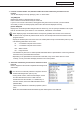

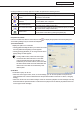


Table Of Contents
- Introduction
- Installing/Launching
- Program Creation/Editing
- The main Program Editor window
- Creating programs
- ●Valid content files
- ●Positioning content (Layout)
- ●Setting the background/frames 1-4
- ●Setting the scroll message
- ●Setting audio and music
- ●Setting the PIP window
- ●Saving a program
- ●Opening a program
- ●Checking a program
- ●Preview Program Display Settings
- ●Deleting a program
- ●Displaying program properties
- ●Importing/exporting a program
- RSS Editor
- Conditional Content
- Creating/Editing a Timetable
- Creating/Editing Schedules
- Panel Management and Option
- Distributing schedules
- Schedule Management
- Schedule Reception/Program Display
- Key/Mouse Monitoring
- Monitoring status

68
Timetable Editor
Creating a timetable
●Registering a program in the timetable
1. Check that the [Program] tab is selected.
Ifitisnot,clickthe[Program]tabtoselectit.
The program list will be displayed here.
Therearefourcategoriesinthelist:“ProgramName”,
“Duration”,“ScreenSize”,and“ScreenPosition”.
Thecoloroftheiconinfrontofthe“ProgramName”
representsthe“ColorofProgram”.Click[Properties
ofProgram]fromthe[File]menuin“Program
Editor”tochangeit.(
F
p.51)
Program folder Program thumbnails
2. Select the program folder containing the program.
3. From the “Program Name”, select a program, and click
,
or alternatively, double-click the program.
The[AddProgramtoTimetable]dialogboxwillappear.
4. Set the “Play back time”.
This is the time of day when the program will be played.
Specifytimesbetween00:00and24:00.
5. Click [OK].
The program will be registered to the timetable.
Programs may also be registered by dragging
themfromthe“ProgramName”tothe“Timetable”.
Registered programs can be changed in the
Timetable. (
F
p.70,71)
6. Repeat steps 2 to 4 as necessary and set all the
programs that you want to display over the course of the
day.
Creating a timetable