
Operation Manual
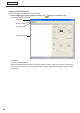


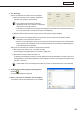


Table Of Contents
- Introduction
- Installing/Launching
- Program Creation/Editing
- The main Program Editor window
- Creating programs
- ●Valid content files
- ●Positioning content (Layout)
- ●Setting the background/frames 1-4
- ●Setting the scroll message
- ●Setting audio and music
- ●Setting the PIP window
- ●Saving a program
- ●Opening a program
- ●Checking a program
- ●Preview Program Display Settings
- ●Deleting a program
- ●Displaying program properties
- ●Importing/exporting a program
- RSS Editor
- Conditional Content
- Creating/Editing a Timetable
- Creating/Editing Schedules
- Panel Management and Option
- Distributing schedules
- Schedule Management
- Schedule Reception/Program Display
- Key/Mouse Monitoring
- Monitoring status

50
Program Editor
●Preview Program Display Settings
Ifyoucheck“SetConfigurationbeforePreviewProgram”on
the[View]menu,the“Previewprogramsetting”screenwill
bedisplayedduringtheprogrampreview.Youcansetthe
conditions,andifyouclickthe“Preview”button,thepreviewwill
occur under the conditions you have set.
•Previewsometimelaterprogram:
Displaystheprogrampreviewafteraspecifiedamountoftime
has passed. The time at which the program switches to the
following content may differ from situations where programs are
playedfromthebeginningsincethefirstcontentdisplayedmust
be played from the beginning when previewing programs with
this function.
•Previewprogramwithplayconditions:
Click“PlayConditionSetting”tosetconditions
Duringconditionalcontentplayback,contentmatchingtheconditionssetin[PlayConditionSetting]is
displayed.
•“Playdate” :
Sets the date on which the program will be played.
•“PlayTime” :
Sets the time at which the program will be played.
•“Panelname” :
Sets the panel on which the program will be played.
•“Group” :
Sets the group with which the program will be played.
•“Comment” :
Sets comments on the panel on which the program will be played.
•Previewprogramwithbezelpositionformultimonitor:
Displays the program preview over the edges between panels when using multiple monitors
* Think of the edges as rough estimates.
•“Modelname” :
Select the monitor model name.
•“Composition” :
Select the multi-monitor setup.
●Deleting a program
Delete unnecessary programs.
1. Click [Delete Program] from the [File] menu.
The[DeleteProgram]dialogboxwillappear.
2. Select the program folder containing the program.
3. Select a program from the “Program List” and click
[Delete].
4. Click [Yes].
The selected program has now been deleted.
5. Click [Close].
Creating programs
Click“Monitorsetting”tosetconditions