
Operation Manual
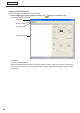


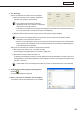


Table Of Contents
- Introduction
- Installing/Launching
- Program Creation/Editing
- The main Program Editor window
- Creating programs
- ●Valid content files
- ●Positioning content (Layout)
- ●Setting the background/frames 1-4
- ●Setting the scroll message
- ●Setting audio and music
- ●Setting the PIP window
- ●Saving a program
- ●Opening a program
- ●Checking a program
- ●Preview Program Display Settings
- ●Deleting a program
- ●Displaying program properties
- ●Importing/exporting a program
- RSS Editor
- Conditional Content
- Creating/Editing a Timetable
- Creating/Editing Schedules
- Panel Management and Option
- Distributing schedules
- Schedule Management
- Schedule Reception/Program Display
- Key/Mouse Monitoring
- Monitoring status

45
Program Editor
5. Set “Scrolling.”
Set the scroll direction and speed of scroll messages.
1) Selectthe“Direction”from“Leftward,”“Rightward,”
“Upward”and“NoMove”optionbuttons.
•Ifthe“Vertical”optionbuttonisselectedin
“MessageFormat,”the“Leftward”or“Rightward”
option button cannot be selected.
•If“NoMove”isselected,scrollmessagesaredisplayedatthecenterofthespecifiedrangelineby
line. (The portion that is outside of this range is not displayed.)
2) Dragthe“Speed”slidertotheleftorrighttosetthescrollspeed(10stepsavailable).
•Evenifthescrollmessagespeedissetatthesamevalue,theactualscrollspeedmaydiffer
dependingontheperformanceofthePC.
•Whenthe“UseTransparent”checkboxischecked,thescrollspeedmaybelowercomparedwith
thatofopaquescrollmessages.Itisrecommendedthattestsbeconductedbyactuallydisplaying
scroll messages before operation.
Settingstobemadewhenthe“NoMove”optionbuttonisselected
3) Set“DisplayTimeofEachLine.”(0to9999seconds)
Scroll messages are displayed line by line. Set the display time.
4) Set whether to perform fade-in and fade-out.
Todisplayscrollmessagessothatthecurrentlydisplayedscrollmessagefadesoutandthenextscroll
messagefadesinwhenswitchingbetweenscrollmessages,checkthe“UseFadingin/outWhenTelop
Switches.”checkbox.
If fade-in/fade-out scroll messages are located on a video, the desired effect may not be obtained.
6. Click [Save Scroll Message] from the [File] menu.
Or click
.
The[SaveAs]dialogboxwillappear.
7. Enter a new name in “File Name” and click [Save].
Thecreationofthescrollmessagefileisnowcomplete.
Creating programs