
Operation Manual
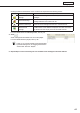
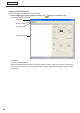


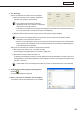


Table Of Contents
- Introduction
- Installing/Launching
- Program Creation/Editing
- The main Program Editor window
- Creating programs
- ●Valid content files
- ●Positioning content (Layout)
- ●Setting the background/frames 1-4
- ●Setting the scroll message
- ●Setting audio and music
- ●Setting the PIP window
- ●Saving a program
- ●Opening a program
- ●Checking a program
- ●Preview Program Display Settings
- ●Deleting a program
- ●Displaying program properties
- ●Importing/exporting a program
- RSS Editor
- Conditional Content
- Creating/Editing a Timetable
- Creating/Editing Schedules
- Panel Management and Option
- Distributing schedules
- Schedule Management
- Schedule Reception/Program Display
- Key/Mouse Monitoring
- Monitoring status

41
Program Editor
Clickingthebuttonsatthebottomofthe“ContentFile”listperformsthefollowingactions:
Icon Menu option Description
CreateNewScroll
Message
LaunchesScrollMessageEditorandallowsyoutocreatenewscroll
messages.
EditScrollMessage
LaunchesScrollMessageEditorandallowsyoutoeditthescroll
messageselectedinthe“ContentFile”list.
Delete Scroll Message Deletesthescrollmessagesselectedinthe“ContentFile”list.
add blank scroll
message
Ahiddensectioncanbeaddedtotheplaylist.Likeothercontentfiles,
the duration and order of play can be set for hidden sections.
FormoredetailsaboutScrollMessageEditor,refertop.42.
4. Click .
Scrollmessagefilesareaddedtotheendoftheplaylist.
Formoredetailsabouttheplaylist,refertop.38.
Instep3,youcanalsoregisterscrollmessagefiles
by double-clicking them, or dragging them from the
“ContentFile”listtothe“Playlist”.
5. Repeat steps 1 to 4 as necessary. You can set other scroll messages in the same manner.
Creating programs