
Operation Manual



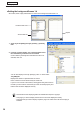


Table Of Contents
- Introduction
- Installing/Launching
- Program Creation/Editing
- The main Program Editor window
- Creating programs
- ●Valid content files
- ●Positioning content (Layout)
- ●Setting the background/frames 1-4
- ●Setting the scroll message
- ●Setting audio and music
- ●Setting the PIP window
- ●Saving a program
- ●Opening a program
- ●Checking a program
- ●Preview Program Display Settings
- ●Deleting a program
- ●Displaying program properties
- ●Importing/exporting a program
- RSS Editor
- Conditional Content
- Creating/Editing a Timetable
- Creating/Editing Schedules
- Panel Management and Option
- Distributing schedules
- Schedule Management
- Schedule Reception/Program Display
- Key/Mouse Monitoring
- Monitoring status

35
Program Editor
Using the grid
Usingthegridmakesiteasytopositionitemsaccurately.Itemscanbedraggedwiththemouseandalignedon
the grid. The grid can be set with the following procedure:
1. From the [Option] menu click [Setting].
The[Setting]dialogboxwillappear.
2. Set the “Frame Layout”.
Checkthe“FramepositioninGrid”checkboxtousethegrid.
Clearthecheckboxtopositionframesin1ptincrements.
3. Set the “Interval” for the grid.
Enterawholenumberbetween2-100pt.(Thedefaultvalue
is8pt)
•Showorhidethegridbycheckingorclearingthe“ShowGrid”checkbox.Evenifthegridishidden,if
youhavecheckedthe“FramepositioninGrid”checkbox,frameswillbealignedtothegridwhenmoved
orresized.
•Evenifyouhavecheckedthe“FramepositioninGrid”checkbox,youwillbeabletoignorethegridand
move items in 1 pt increments by doing the following:
·Dragginganitemwhileholdingdown[Ctrl].Thiswillallowyoutoignorethegridwhenresizing.
·Dragginganitemwhileholdingdown[Shift]+[Ctrl].Thiswillallowyoutomaintaintheaspectratioofa
framewhileyouresizeitandignorethegridatthesametime.
· Holdingdown[Ctrl]whileusingthearrowkeys.Thiswillallowyoutomoveitemsin1ptincrements.
· Holdingdown[Shift]+[Ctrl]whileusingthearrowkeys.Thiswillallowyoutoresizeitemsin1pt
increments.
Display priority order
Background
Frame1
Frame2
Frame3
Frame4
If frames overlap when a program is displayed, programs will be
displayed in the following order from foreground to background.
“Frame4” → “Frame3” → “Frame2” → “Frame1” → “Background”
•Thedisplaypriorityordercannotbeset.
•IfthecontentoftheframeorbackgroundisaPowerPoint
file,EXEfileorRSSconfigurationfile,itwillbedisplayed
in the foreground, regardless of the display priority order.
•Scrollmessagesaredisplayedaheadofthebackground,
frame.
•Inallcases,thePIPframeisdisplayedaheadofthebackground,frame,andscrollmessages.
•Ifmoviesaredisplayedinthebackground,theymaybedisplayedinfrontofotherframesinsome
cases. Set movies in frames 1-4, not the background.
Using a layout you have created
Click[SaveLayout]tosavetheLayoutyouhavecreated.Thenexttimeyoucometocreateaprogramyouwill
thenbeabletoclickon[OpenLayout]tousethesavedlayout.
When you save a layout, frame settings are not saved.
OnlyScreenTop-LeftPosition,ScreenSize,andFrameLayoutaresaved.
Creating programs