
Operation Manual


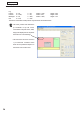

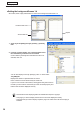


Table Of Contents
- Introduction
- Installing/Launching
- Program Creation/Editing
- The main Program Editor window
- Creating programs
- ●Valid content files
- ●Positioning content (Layout)
- ●Setting the background/frames 1-4
- ●Setting the scroll message
- ●Setting audio and music
- ●Setting the PIP window
- ●Saving a program
- ●Opening a program
- ●Checking a program
- ●Preview Program Display Settings
- ●Deleting a program
- ●Displaying program properties
- ●Importing/exporting a program
- RSS Editor
- Conditional Content
- Creating/Editing a Timetable
- Creating/Editing Schedules
- Panel Management and Option
- Distributing schedules
- Schedule Management
- Schedule Reception/Program Display
- Key/Mouse Monitoring
- Monitoring status

33
Program Editor
4. Set [Frame Layout].
1) Checkthecheckboxesbesidetheframes,scroll
messages, or PIP that you want to display.
Youcanalsoclickthe button at the top right
hand corner of a display frame, PIP frame or scroll
message to hide it.
2) Set“X”,“Y”,“Width”,and“Height”coordinatesforeach
frame or scroll message.
•Only“X”and“Y”coordinatescanbeadjustedfor
thePIPframe.ToadjustthesizeofthePIPframe,
drag your mouse over the layout window (See
below).
•Clickonadisplayframe,PIPframeorascroll
messagetoselectit.Eightresizehandleswill
appear around the border of the frame. By dragging
thesehandleswiththemouse,youcanresizea
display frame, PIP frame or scroll message, and
confirmchangesvisually.
The display frame, PIP frame and scroll messages
can be moved by dragging an area other than the
resizehandleusingthemouse.
· Draggingwhileholdingdown[Shift]allowsyoutoresizeaframewhilekeepingthesameaspect
ratio.
· Youcanalsomoveframesorscrollmessagesusingthearrowkeys.
·
Youwillstillbeabletoadjustthesizeofaframeifyouholddown[Shift]whileusingthearrowkeys.
·
Y
oucanalsoclickthe[PinP]tab,andspecifya“Value”forthe“Size”under“Key”toadjustthe
sizeofaPIPframe.
•Youcanmoveorresizeitemsaccuratelybyaligningthemwiththegrid.(
F
p.35)
Creating programs