
Operation Manual


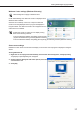


Table Of Contents
- Introduction
- Installing/Launching
- Program Creation/Editing
- The main Program Editor window
- Creating programs
- ●Valid content files
- ●Positioning content (Layout)
- ●Setting the background/frames 1-4
- ●Setting the scroll message
- ●Setting audio and music
- ●Setting the PIP window
- ●Saving a program
- ●Opening a program
- ●Checking a program
- ●Preview Program Display Settings
- ●Deleting a program
- ●Displaying program properties
- ●Importing/exporting a program
- RSS Editor
- Conditional Content
- Creating/Editing a Timetable
- Creating/Editing Schedules
- Panel Management and Option
- Distributing schedules
- Schedule Management
- Schedule Reception/Program Display
- Key/Mouse Monitoring
- Monitoring status

17
Welcome Center settings (Windows Vista only)
ThesesettingsdonotapplytoWindowsXP/7.
Underdefaultsettings,the“WelcomeCenter”isdisplayedwhen
Windows Vista is started.
Clearthe“Runatstartup”checkbox,tostopthe“Welcome
Center”frombeingdisplayedwhenaprogramisdisplayedin
ProgramViewer.The“WelcomeCenter”willnotappearfromthe
nexttimethePCisstarted.
If“WelcomeCenter”isclosedyoucandisplayitusing
either of the following methods.
•FromtheWindowsTaskbar,click[Start],[ControlPanel],
[SystemandMaintenance],andthen[WelcomeCenter].
•FromtheWindowsTaskbar,click[Start],[AllPrograms],[Accessories],andthen[WelcomeCenter].
Screen saver settings
Disable the screen saver so that it does not display on the monitor when a program is displayed in Program
Viewer.
•If using Windows XP
1. Right-click on an empty area of the desktop, and from the menu that appears, click [Properties].
The[DisplayProperties]dialogboxwillappear.
2. Click the [Screen Saver] tab and select “(None)” from the
“Screen saver” list.
3. Click [OK].
Installing SHARP Digital Signage Software