
Operation Manual


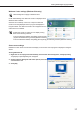


Table Of Contents
- Introduction
- Installing/Launching
- Program Creation/Editing
- The main Program Editor window
- Creating programs
- ●Valid content files
- ●Positioning content (Layout)
- ●Setting the background/frames 1-4
- ●Setting the scroll message
- ●Setting audio and music
- ●Setting the PIP window
- ●Saving a program
- ●Opening a program
- ●Checking a program
- ●Preview Program Display Settings
- ●Deleting a program
- ●Displaying program properties
- ●Importing/exporting a program
- RSS Editor
- Conditional Content
- Creating/Editing a Timetable
- Creating/Editing Schedules
- Panel Management and Option
- Distributing schedules
- Schedule Management
- Schedule Reception/Program Display
- Key/Mouse Monitoring
- Monitoring status

16
●Setting the environment of the viewer PC
Oncetheinstallationiscomplete,changethesettingsoftheviewerPCbeforeusingthissoftware.A
descriptionisgivenbelow,usingWindowsXP/Vista/7asanexample.
Auto login settings
IftheviewerPCistobeusedwithoutanoperator,Windowsautologinshouldbeenabled.
ThefollowingisanexampleusingWindowsVista.
1. From the Windows Taskbar, click [Start], [All Programs], [Accessories], and then [Command
Prompt].
The[CommandPrompt]windowwillappear.
2. Type in “control userpasswords2” (without the inverted
commas) and push [Enter].
3. If the [User Account Control] window appears, click
[Continue].
The[UserAccounts]dialogboxwillappear.
4. Clear the “Users must enter a user name and password
to use this computer” check box.
5. Click [OK].
6. In the [Automatically Log On] window, enter a “User
Name” and “Password”, and click [OK].
7. Type in “exit” and then press [Enter].
Installing SHARP Digital Signage Software