
Operation Manual


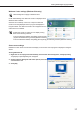


Table Of Contents
- Introduction
- Installing/Launching
- Program Creation/Editing
- The main Program Editor window
- Creating programs
- ●Valid content files
- ●Positioning content (Layout)
- ●Setting the background/frames 1-4
- ●Setting the scroll message
- ●Setting audio and music
- ●Setting the PIP window
- ●Saving a program
- ●Opening a program
- ●Checking a program
- ●Preview Program Display Settings
- ●Deleting a program
- ●Displaying program properties
- ●Importing/exporting a program
- RSS Editor
- Conditional Content
- Creating/Editing a Timetable
- Creating/Editing Schedules
- Panel Management and Option
- Distributing schedules
- Schedule Management
- Schedule Reception/Program Display
- Key/Mouse Monitoring
- Monitoring status

15
10. Click [Install].
The installation will start.
11. Click [Finish].
The installation is now complete.
Ifthefollowingscreenappears,click[Yes]torestartyour
PC.
If you are using the Standalone or Network Versions, a shortcut to SHARP Digital Signage Software will be
created on your desktop.
IfyouareusingtheStandaloneorViewerVersions,ClientScheduler( ) will launch and appear in the
Task Tray.
If you are using the Network Version, Server Scheduler (
)andClientScheduler( ) will launch and
appear in the Task Tray.
Installing SHARP Digital Signage Software