
Operation Manual
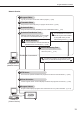


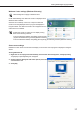


Table Of Contents
- Introduction
- Installing/Launching
- Program Creation/Editing
- The main Program Editor window
- Creating programs
- ●Valid content files
- ●Positioning content (Layout)
- ●Setting the background/frames 1-4
- ●Setting the scroll message
- ●Setting audio and music
- ●Setting the PIP window
- ●Saving a program
- ●Opening a program
- ●Checking a program
- ●Preview Program Display Settings
- ●Deleting a program
- ●Displaying program properties
- ●Importing/exporting a program
- RSS Editor
- Conditional Content
- Creating/Editing a Timetable
- Creating/Editing Schedules
- Panel Management and Option
- Distributing schedules
- Schedule Management
- Schedule Reception/Program Display
- Key/Mouse Monitoring
- Monitoring status

13
Installing SHARP Digital Signage Software
Youmustloginasanadministratorbeforebeginningtheinstallationprocess.
●Installing SHARP Digital Signage Software
1. Start your PC
2. Close down all applications.
3. Launch the SHARP Digital Signage Software setup program (setup.exe).
Double-clickthesetup.exefiletolaunchthesetupprogram.
Ifasecuritywarningsaying‘Thepublishercouldnotbeverified.’isdisplayedduringtheinstallation,
click[Run].
If using the “SHARP Digital Signage Software CD-ROM”
1) If the setup program is launched automatically, proceed
to step 4. If the setup program does not launch after a
fewmoments,launchtheSetup.exefileintheCD-ROM
folder.
2) Inthe[AutoPlay]dialogbox,click“Runsetup.exe”.
Ifthe[AutoPlay]dialogboxdoesnotappear,double-click
theSetup.exefileintheCD-ROMfolder.
3) Whenthe[UserAccountControl]dialogbox
appears,click[Allow](forWindowsVista)or[Yes](for
Windows7).
4. In the [Welcome to the Install Shield wizard...] window,
click [Next].
Installing SHARP Digital Signage Software