
Operation Manual
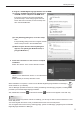
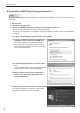

Table Of Contents

6
Installing/Launching
Uninstalling SHARP Digital Signage Software Pro
TIPS
To install the SHARP Digital Signage Software Pro again after uninstalling it, you need to obtain a license
code again.
Start your PC.1.
Close down all applications.2.
Launch the SHARP Digital Signage Software setup program (setup.exe).3.
Double-clickthesetup.exeletolaunchthesetupprogram.•
Ifasecuritywarningsaying‘Thepublishercouldnotbeveried.’isdisplayedduringtheinstallation,•
click [Run].
If using the “SHARP Digital Signage Software Pro CD-ROM”
(1) Load the “SHARP Digital Signage Software Pro
CD-ROM” into the computer’s CD-ROM drive.
If the setup program is launched automatically,
proceed to step 4. If the setup program does not
launch after a few moments, launch the setup.exe
leintheCD-ROMfolder.
(2) In the [AutoPlay] dialog box, click “Run setup.
exe”.
If the [AutoPlay] dialog box does not appear, double-
clickthesetup.exeleintheCD-ROMfolder.
(3) When the [User Account Control] dialog box
appears, click [Allow] (for Windows Vista) or
[Yes] (for Windows 7).
4. Select the “Remove” option button, and click [Next].
If you select the “Modify” or “Remove” option button,
you will have to obtain a license code again.