
Operation Manual
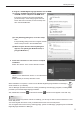
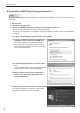
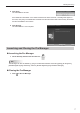

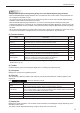
Table Of Contents

5
Installing/Launching
If using the “SHARP Digital Signage Software Pro CD-ROM”
(1) Load the “SHARP Digital Signage Software Pro
CD-ROM” into the computer’s CD-ROM drive.
If the setup program is launched automatically,
proceed to step 4. If the setup program does not
launch after a few moments, launch the setup.exe
leintheCD-ROMfolder.
(2) In the [AutoPlay] dialog box, click “Run setup.
exe”.
If the [AutoPlay] dialog box does not appear, double-
clickthesetup.exeleintheCD-ROMfolder.
(3) When the [User Account Control] dialog box
appears, click [Allow] (for Windows Vista) or
[Yes] (for Windows 7).
4. Follow the instructions on the screen to complete
installation.
Select “Pro Version” in the version selection window.
Caution
This is not “Pro Web Server Version” or “Pro Web Client
Version”.
Select carefully in the setup selection screen.
When installation is complete, a shortcut to the SHARP Digital Signage Software Pro Manager (
)
will be created on your desktop.
The Pro Manager provides functions for creating, distributing and managing programs, including those
provided by the SHARP Digital Signage Software.
Also, Distribution Scheduler (
) and Client Scheduler ( ) will launch and appear in the Task Tray.
TIPS
If you input a temporary license code when installing, you will only be able to use the software for a two-
month trial period.
You should register the license code you obtained before the end of the trial period.
You can register the license code by selecting [Help] - [About Pro Manager] - [Register] from the SHARP
Digital Signage Software Pro Manager.