
Operation Manual

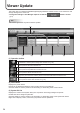


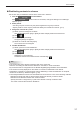
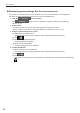
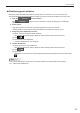
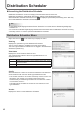
Table Of Contents

37
Viewer Update
Distributing contents in advance
This function lets you distribute contents to the viewer PC in advance.
Click the 1.
function button.
If the
function button is not shown, change the settings in Pro Manager
Options. (p.11)
Select panels.2.
Use the group tree to show only the panels registered in a group on the list.•
Specifyaltertoshowonlythepanelsthatsatisfytheconditionsonthelist.(p.10)•
Assign the contents to a panel.3.
(1) Select a panel to assign the contents.
Click while holding down [Ctrl] or [Shift] to select multiple panels at the same time.
(2) Click
.
(3) Click [Assign My Contents].
The [Open] dialog box appears.
(4) Select the contents and click [Open].
The contents are now assigned.
Conrmdistribution4.
(1)Selectapaneltoconrmdistribution.
Click while holding down [Ctrl] or [Shift] to select multiple panels at the same time.
(2) Click
.
(3) Click [Yes].
Distributionisnowconrmed.
Conrmedcontentsaremarkedwiththeconrmedsign(
).
TIPS
The contents are sent to the My Contents Folder in the viewer PC. •
Ifthereisanexistinglewiththesamelenameinthefolder,itwillbeoverwritten.
MyContentsFolderisconguredfromtheSHARPDigitalSignageSoftwareClientScheduler.
The contents currently displayed on the viewer PC cannot be distributed in this method. •
Suspend the contents by “Pause Program” before distributing it. After the distribution is complete,
resume the contents by “Restart Program”. (p.32)
The already distributed contents can be deleted from the viewer PC in one of the following methods:•
-Distributeanemptyle(size0)withthesamelenameastheleyouwishtodelete.
-Distributeatextlethatcontainsalistoflestodelete.
SpecifyeachleinasinglelinebyapathnamerelativetotheMyContentsFolder.
Thenameofthetextleshouldbe“Delete.lst”.