
Operation Manual
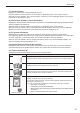

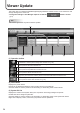


Table Of Contents

34
This button lets you update the SHARP Digital Signage Software Viewer Version on the viewer PC and
change settings of the viewer PC.
* Change the settings in Pro Manager Options so that the
button is shown.
(p.11)
TIPS
This is not to guarantee any future software update.
(1)
(2) (3) (4) (5) (6)
(1) Operation toolbar
Assignsasystemle(suchasupdatersorsettings)toapanel(ortheviewerPCthatisconnectedto)
for distribution. Select a panel to assign and click this icon. (p.35)
Revertstothestatebeforethesystemlewasassigned.
Select a panel to revert and click this icon.
Stopsuncompletedsystemledistributionandcancelstheconrmation.
Select a panel to stop distribution and click this icon.
Resendthesystemleforwhichadistributionerrorhasoccurred.
Select a panel to resend and click this icon.
Cancelstheconrmationofthesystemlewhichwasassignedtoapanel(ortheviewerPCthatis
assignedto)andconrmed.Selectapaneltocanceltheconrmationandclickthisicon.
Conrmsassignmentofasystemleandreservesdistribution.
Selectapaneltoconrmandclickthisicon.(p.35)
(2) Panel Name
Displays the panel names.
Panels can be displayed selectively using the Group tree or the Filter bar.
Click the header to sort the panels in the ascending or descending order of their names.
(3)Systemlelist
Displaysthenamesofthesystemles(such as updaters and settings) assigned to panels.
Double-clickthistoassignasystemle.
Clicktheheadertosortthepanelsintheascendingordescendingorderofthesystemlenames.
Right-click to display a menu, which lets you perform various operations.
Viewer Update