
Operation Manual
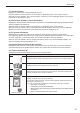
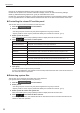

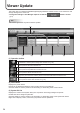


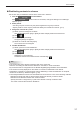
Table Of Contents

32
Management
Panels can be displayed selectively using the Group tree or the Filter bar.
Double-click the panel icons and the thumbnails to display a menu for status monitoring settings.
Read “(3) Status Monitoring Options list” (p.30) for the details of the menu.
Double-clickathumbnailtodisplayitusinganapplicationspeciedintheProManagerOptionssettings.
InPULLtypedistribution,thestatuswillberetrievedatthetimeoftherstaccessfromtheviewerPC.
Controlling the viewer PC and the panel
This function lets you control the viewer PC and the panel.
Click the 1.
function button.
Select panels.2.
Use the group tree to show only the panels registered in a group on the list.•
Specifyaltertoshowonlythepanelsthatsatisfytheconditionsonthelist.(p.10)•
Select a panel to control.3.
Click while holding down [Ctrl] or [Shift] to select multiple panels at the same time.
Click 4.
and select a control option.
Menu option Description
Turn ON Viewer PC
Turns on the viewer PC of selected panels.
This option is not available in PULL type distribution.
Turn OFF Viewer PC Turns off the viewer PC of selected panels.
Restart Viewer PC Restarts the viewer PC of selected panels.
Adjust the clock of
Viewer PC
Synchronizes the clock of the viewer PC with that of the management PC.
Turn on LCD monitor Turns on the selected panels.
Turn off LCD monitor Turns off the selected panels.
Select video input source
Switches the video input source of the selected panels.
In the case of PN series and LB-1085, the input cannot be switched to “TV”.
Pause Program Pauses program display.
Restart Program Resumes displaying of a paused program.
Amessageconrmingtheoptionwillbedisplayed.
Click [Yes].5.
The selected control option will be processed.
InPULLtypedistribution,theselectedcontrolwillbeperformedatthetimeoftherstaccessfrom
the viewer PC after this operation.
Retrievingsystemles
ThisfunctionisforretrievingthesystemlesoftheviewerPC.
(Thesystemlesareusedbytheservicepersons.)
Click the 1.
function button.
Select panels.2.
Use the group tree to show only the panels registered in a group on the list.•
Specifyaltertoshowonlythepanelsthatsatisfytheconditionsonthelist.(p.10)•
Selectapaneltoretrievethesystemle.3.
Click while holding down [Ctrl] or [Shift] to select multiple panels at the same time.
Click 4.
andselecttheletoretrieve.
InPULLtypedistribution,theselectedlewillberetrievedatthetimeoftherstaccessfromthe
viewer PC after this operation.