
Operation Manual
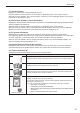
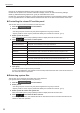

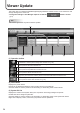


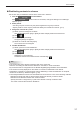
Table Of Contents

31
Management
(7) Current Program
Displays the name of the currently displayed program.
Click the header to sort the panels in the ascending or descending order of the program names.
When the check is cleared in the “Current program” check box in the Pro Manager Options, the program
names will not be displayed. (p.11)
(8) File Version, Software License Information
Displays the version and the software license information of the SHARP Digital Signage Software Viewer
Version installed in the viewer PC.
Click the header to sort the panels in the ascending or descending order of the versions.
Whenthecheckisclearedinthe“Licenseinformationandleversions”checkboxintheProManager
Options, the version and software license information will not be displayed. (p.11)
(9) PC system information
Displays the PC system information of the viewer PC. Click this item to view the further details.
If the Operating System of the viewer PC is older than the Windows 2000 Service Pack 1, the information
on “CPU usage rate”, “number of threads” and “number of handles” cannot be retrieved.
When the check is cleared in the “PC system information” check box in the Pro Manager Options, the
system information will not be displayed. (p.11)
(10)SystemlesLastretrievaldateandtime
DisplaysthedateandtimeoftheretrievalofsystemlesfromtheviewerPCs.(p.32)Clickthisitemto
openthefolderwherethesystemlesaresaved.(Thesystemlesareusedbytheservicepersons.)
(11) Panel icon/thumbnail
Displays the retrieved panel status in terms of icons and thumbnails.
Panel icon/thumbnail Description
Displayed when the status of the panel and the viewer PC have not been retrieved.
Displayed when there is no response from the viewer PC.
Displayed when there is a response from the viewer PC, but screen captures of the
currently displayed screen cannot be retrieved.
(Example image only)
Displayed when there is a response from the viewer PC and screen captures of the
currently displayed screen have been retrieved.
* Thumbnails of retrieved screen captures will be displayed. (It differs depending on
the display of the viewer PC.)
* The icon on the left will be displayed in the following LCD monitor conditions:
The power is turned off•
A hardware error has been detected•
When multiple PCs are being connected and there are differences in •
conditions
When a status retrieval error has occurred•