
Operation Manual
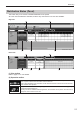

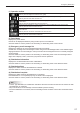

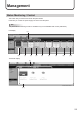
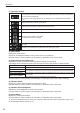
Table Of Contents

30
Management
(1) Operation toolbar
Monitors the panels automatically.
The information of the panels registered with the “Update automatically” option is retrieved at
regular intervals and displayed.
The interval for information retrieval can be changed in the Pro Manager Options settings.
(p.11)
Stops the automatic monitoring of the panels.
Retrieves the panel status.
Selectapaneltoretrievetheconrmationandclickthisicon.
Displays the panel status as a list.
Displays the panel status by thumbnails.
The thumbnail size can be changed.
This button lets you control the viewer PCs and the panels, such as turning the power on and
off. (p.32)
ThisbuttonisforretrievingthesystemlesoftheviewerPCs.(p.32)
(2) Panel Name
Displays the panel names.
Panels can be displayed selectively using the Group tree or the Filter bar.
Click the header to sort the panels in the ascending or descending order of their names.
(3) Status Monitoring Options list
Displays the content of the Status Monitoring Options settings for each panel.
The settings can be changed from the menu which appears when right-clicked (or double-clicked).
Retrieve status manually Retrieves the panel status.
Openthumbnaille DisplaysthethumbnailsusinganapplicationassociatedtotheJPEGles.
Update automatically
Sets whether to update the screen or not when the panels are monitored automatically.
Automatic Update disabled
Capture screen enabled
Sets whether to retrieve the image currently displayed by the viewer PC as a part of the
panel status.
The captured image will be displayed as the thumbnail.
Capture screen disabled
Click the header to sort the panels in the ascending or descending order of the content of settings.
(4) Network Status
Displays the network status for status monitoring and control.
Click the header to sort the panels in the ascending or descending order of the status.
(5) Network Acknowledgment
Displays the acknowledgment results of communication.
Click the header to sort the panels in the ascending or descending order of the status.
(6) Panel Status
Displays the retrieved panel status.
Click the header to sort the panels in the ascending or descending order of the status.
To retrieve the panel status of the viewer PC, check the “Status of LCD monitor (PN series)” check box in
the Pro Manager Options settings. (p.11)